King's Chamber manual
Overview
King's Chamber is a geometry-driven reverb and instrument modelled on the King's Chamber of the Great Pyramid, 10.47 × 5.234 × 5.80 m of granite, with its open granite coffer. You place a source and a listener anywhere in the room, including lying inside the coffer, and the reverb is recomputed from that position. Six more sacred rooms come with it: the Holy of Holies, Solomon Hall, the Barabar caves Sudama and Vapika, the Osireion and the Notre-Dame nave.
Four engines share one model of the room: exact early reflections, a bank of about 300 low room modes, the coffer's own resonances (including the granite shell at about 117 Hz), and a long late tail. That is why position matters so much in the low end.
On top of the reverb, King's Chamber is an instrument. A group of 2 to 16 virtual people chants OM, AUM, HU or AH in the room. The room keyboard turns held notes into a resonator or a self-sounding drone. Journeys walk the listener through the room in time with your song. Output is stereo or binaural for headphones.
Installation
Install
- Download the King's Chamber installer (
.pkg) from the link in your purchase e-mail, or from the product page for the free trial. - Double-click the
.pkgand follow the steps. You can choose which formats to install:- VST3 goes to
/Library/Audio/Plug-Ins/VST3(Ableton Live, Bitwig, Cubase, Reaper, FL Studio and others). - Audio Unit goes to
/Library/Audio/Plug-Ins/Components(Logic Pro, GarageBand, Ableton Live). - Standalone app goes to
/Applicationsand runs without a DAW.
- VST3 goes to
- Open your DAW and rescan plug-ins. King's Chamber appears from the manufacturer Sacred Audio as Kings Chamber.
King's Chamber runs on macOS 11 or later, on Apple Silicon and Intel Macs. Windows versions are coming soon.
Ableton Live
Open Settings > Plug-Ins. Turn on Use VST3 Plug-in System Folders (and Use Audio Units if you prefer AU), then press Rescan. Use it as an insert or on a return track. To play the room keyboard or the chant's MIDI harmony, set a MIDI track's MIDI To to the King's Chamber track, then Kings Chamber.
Logic Pro
Logic uses the Audio Unit. If King's Chamber doesn't appear, open Logic Pro > Settings > Plug-in Manager, select Kings Chamber and click Reset & Rescan Selection. On an audio track or aux it works like any reverb. King's Chamber is an Audio Unit MIDI-controlled effect, so to play its room keyboard from Logic, load it in a software instrument track's instrument slot under AU MIDI-controlled Effects, and choose the audio it should process in its Side Chain menu.
Trial and licence key
The first time you open any Sacred Audio plug-in you accept the licence agreement once for the whole suite. After that King's Chamber runs as a full 14-day trial, counted from the first time you open it. The header shows Trial 14d and counts down.
When the trial ends without a key, King's Chamber keeps working in demo mode: the header pill turns to Activate, the licence panel opens once per DAW session, and the output dips to silence for 4 seconds once a minute. Your sessions always reload with all their settings.
To enter your licence key, click the trial pill (or open the menu and choose Enter licence key...), then do one of these:
- Paste the key into the field and click Activate. The key starts with
SA1. - Click Paste to paste the key from the clipboard, then Activate.
- Click Load licence file... and choose the
.salicensefile from your purchase e-mail. - Drag the
.salicensefile straight onto the plug-in window.
The key is checked on your computer, offline. Nothing is sent anywhere and you don't need an internet connection. One key unlocks every Sacred Audio product it covers, in every plug-in at once: if you bought The Temple bundle, entering the key in any one of the four unlocks all four. The licence panel then shows your serial and what the key covers. Remove licence takes the key off this computer again.
The Sacred Audio header
Every Sacred Audio plug-in has the same 40 px header strip across the top. Learn it once and it works the same everywhere.
- 1Sigil and name open the About page.
- 2Undo / Redo, one step per knob gesture.
- 3Previous / next preset. The right arrow sits after the preset box.
- 4Preset name opens the preset browser. A
*means you changed something. - 5Save your sound as a preset.
- 6A / B compares two versions of your settings.
- 7Trial pill: days left, or Activate. Click to enter your key.
- 8Menu: presets, window size, Settings, licence, updates, manual, About.
| Part | What it does |
|---|---|
| Sigil and name | Opens the About page: version, build, format, licence status and serial, credits, manual, website, support (a pre-filled e-mail with your version and macOS), licence agreement, health notice where it applies, third-party notices and update check. |
| Undo / Redo | One undo step per knob gesture. |
| Preset name | Opens the preset browser. The arrows either side step to the previous and next preset. A * after the name means you've changed something since loading it. |
| Save | Saves your sound as a preset: name, category, author, tags and a description. |
| A / B | Two versions of your settings to compare. The menu has Copy A to B (or B to A). |
| Trial pill | Shows the trial days left, or Activate when the trial has ended. Click it to enter a key. |
| Update dot | Appears when a newer version is available. Click it for the About page. |
| Menu | Presets (save, save changes, browse, Init to reset to defaults, import, open preset folder, copy A/B), window size, Settings, licence, updates, manual and About. |
Presets
The browser lists All presets, Favourites, Factory and My presets, by category. Search by name or tag, click a preset to hear it, and star the ones you use most. Your own presets are saved as .sapreset files in ~/Documents/Sacred Audio/<plug-in>/Presets/<category>/. You can rename and delete your own presets; factory presets stay as they are (use Save to make a copy).
Import and export: export one preset as a .sapreset file, or a set of your presets as a .sapack pack. To import, use Import presets or packs... in the menu, or drag .sapreset, .sapack or a folder of presets onto the plug-in. Presets made for a different Sacred Audio plug-in are refused with a clear message.
Presets are mix-safe: they never touch the plug-in's level controls (listed in the Presets section below), so loading one doesn't jump your mix.
Window size and Settings
Choose 75 % to 200 % from Menu > Window size or in Settings, or drag the bottom-right corner. The size is remembered for each plug-in.
Settings are shared by all Sacred Audio plug-ins on your computer: window size, Reference tuning (A4 = 440, 432, 444 or 436 Hz), your preset author name, tooltips on or off, the daily update check (on or off) and a button to open your preset folder.
Controls
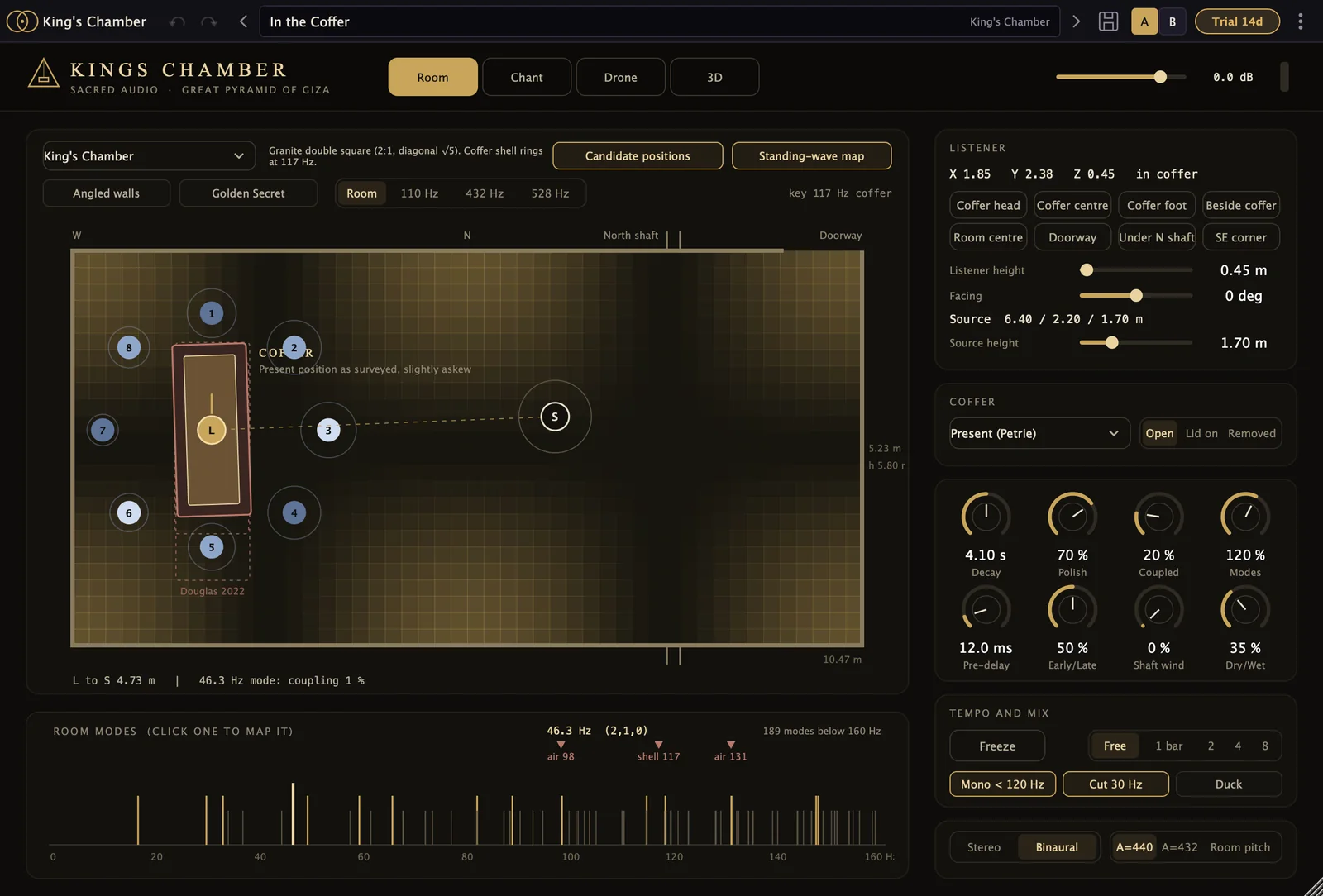
King's Chamber has four pages, chosen with the tabs at the top: Room, Chant, Drone and 3D. The Output level and the meter stay visible on every page; LIM lights under the meter when the safety limiter is working. Hover any control for a short explanation. Every control is automatable.
- 1Room, Chant, Drone, 3D: the four pages.
- 2Output level and meter, on every page.
- 3Room, Angled walls, Golden Secret and Temple key.
- 4Plan: drag S (source) and L (listener).
- 5Mode strip: the room's resonant modes.
- 6Listener: position, spots, height and facing.
- 7Coffer: placement, open, lid on or removed.
- 8Reverb knobs.
- 9Tempo and mix, then output format and tuning.
Room page: room and plan
- 1Room: which sacred room you are in.
- 2Angled walls break up flutter echo.
- 3Golden Secret adds a resonance at the key × φ.
- 4Temple key: Room, 110, 432 or 528 Hz.
- 5Candidate positions of the coffer as outlines.
- 6Standing-wave map colours the floor by the selected mode.
- 7Plan: drag S (source) and L (listener) anywhere.
- 8Mode strip: click a stem to map that mode.
| Control | What it does |
|---|---|
| Room | Which sacred room you are in (see the table below). Choosing a room sets its natural decay and wall treatment; source and listener positions carry over in proportion. A short note about the room appears beside it. |
| Angled walls | Breaks up flutter echo between parallel walls while keeping the tail. On by default in the Barabar caves, whose angled walls are said to do this. |
| Golden Secret | Adds a resonance at the room's key × φ (1.618). In the King's Chamber: 117 × 1.618 = 189.3 Hz. Also draws the double square, its √5 diagonal, the circle and the two 0.618 marks on the plan. |
| Temple key | Room, 110 Hz, 432 Hz, 528 Hz. Tunes a resonance into the room, with two upper octaves (played as 110, 108 and 132 Hz, so 432 and 528 sound exactly). Room uses the room's own stated key. |
| Plan view | A to-scale plan. Drag S (source) and L (listener) anywhere in the room, including into the coffer. |
| Candidate positions | Shows the other candidate coffer positions as outlines. |
| Standing-wave map | Colours the floor by how loud the selected room mode is at each spot. Click a stem in the mode strip below the plan to pick a mode. |
| Mode strip | The room's resonant modes. Click one to map it on the floor. |
| Room | Size (m) | Decay | Stated resonance |
|---|---|---|---|
| King's Chamber | 10.47 × 5.23 × 5.80 (2:1 double square, diagonal √5) | 4.1 s | coffer shell 117 Hz |
| Holy of Holies | 9.14 cube (20 cubits) | 2.6 s | cube modes (75 Hz) |
| Solomon Hall | 27.4 × 9.1 × 13.7 (60:20:30 cubits) | 3.6 s | hall 12.5 Hz, heard three octaves up |
| Barabar - Sudama | ≈ 10.0 × 5.9 × 3.7, polished granite | 11 s, low end ~62 s | dome 74.9 Hz, cave 34.4 Hz |
| Barabar - Vapika | ≈ 7.6 × 4.3 × 3.4 | 12 s, low end ~70 s | 34.4 Hz |
| Osireion | ≈ 30 × 20 × 8, at the water table | 5 s | 68 Hz, slow water shimmer on the tail |
| Notre-Dame Nave | ≈ 60 × 12.5 × 33 | 8.5 s | nave 10.4 Hz, heard three octaves up |
Figures are as the sources state them; dimensions marked ≈ are approximate.
Room page: Listener
- 1Listener and source position in metres, with in coffer.
- 2Spot buttons snap the listener to a spot.
- 3Listener height: 0.45 m is lying in the coffer.
- 4Facing: which way the listener faces.
- 5Source height of your track.
- 6Coffer placement: the surveyed candidates.
- 7Open, Lid on or Removed.
| Control | Range | What it does |
|---|---|---|
| Spot buttons | Snap the listener to a spot: Coffer head, Coffer centre, Coffer foot, Beside coffer, Room centre, Doorway, Under N shaft, SE corner. In rooms without a coffer the first four become Holy spot N, Holy spot, Holy spot S and Beside it. | |
| Listener height | 0.1 m to the ceiling | Ear height. 0.45 m is lying in the coffer; 1.6 m is standing. |
| Source height | 0.1 m to the ceiling | Height of the sound source (where your track is played from). |
| Facing | -180 to 180 deg | Which way the listener faces. Changes left and right of the reflections. |
The listener and source coordinates (X / Y / Z in metres) are shown live, with in coffer when the listener lies in it.
Room page: Coffer
Available in the King's Chamber.
| Control | Choices | What it does |
|---|---|---|
| Coffer placement | Present (Petrie), Present, squared, Douglas 2021, Douglas 2022, Centred | Where the coffer stands. Its original spot is unknown (Petrie found no setting-out marks); these are the surveyed candidates. A listener lying in the coffer moves with it. |
| Coffer | Open, Lid on, Removed | Open coffer, coffer with a lid, or no coffer. From inside the open coffer only sound leaving through the open top reaches you; the granite blocks the rest. |
Room page: reverb knobs
- 1Decay: length of the tail.
- 2Polish: how smooth the granite is.
- 3Coupled: the antechamber and Grand Gallery tail.
- 4Modes: the room's own low notes.
- 5Pre-delay before the reverb starts.
- 6Early/Late balance.
- 7Shaft wind: air through the shafts.
- 8Dry/Wet balance.
- 9Freeze holds the reverb.
- 10Tail sync: Free, or 1 to 8 bars.
- 11Mono < 120 Hz keeps the low end tight.
- 12Cut 30 Hz removes rumble.
- 13Duck lowers the reverb while the input is loud.
- 14Output format: Stereo or Binaural.
- 15Tuning: A=440, A=432 or Room pitch.
| Knob | Range | What it does |
|---|---|---|
| Decay | 0.5–30 s (default 4.1) | Length of the reverb tail (RT60). The real chamber is about 4.1 s. Shows Decay (synced) and is overridden while Tail sync is set to a bar length. |
| Polish | 0–100 % (default 70 %) | How smooth the granite is. Higher is brighter and slightly longer. |
| Coupled | 0–100 % (default 20 %) | Adds the longer, darker tail of the antechamber and Grand Gallery behind the room. |
| Modes | 0–200 % (default 120 %) | Strength of the chamber's low resonances, the room's own notes. |
| Pre-delay | 0–120 ms (default 12) | Gap before the reverb starts. Keeps transients clear. |
| Early/Late | 0–100 % (default 50 %) | Balance between the first reflections and the reverb tail. |
| Shaft wind | 0–100 % (default 0) | Air moving through the air shafts: a soft breathing bed that rings the room. |
| Dry/Wet | 0–100 % (default 35 %) | Dry / wet balance. Use 100 % on a send/return track. |
Room page: Tempo and mix
| Control | What it does |
|---|---|
| Freeze | Holds the current reverb forever. Play over it; switch off to let it die away. |
| Tail sync (Free, 1 bar, 2, 4, 8) | Ties the tail length to the song tempo in bars. Free uses the Decay knob. |
| Mono < 120 Hz | Keeps the reverb mono below 120 Hz so the low end stays tight. On by default. |
| Cut 30 Hz | Removes rumble below 30 Hz from the reverb. On by default. |
| Duck | Turns the reverb down while the input is loud, so the kick stays clean. Uses the sidechain input if connected, otherwise the dry signal. Duck amount (0–100 %, default 50 %) sets how far it drops and is available as an automation parameter. |
Room page: output format and tuning
| Control | Choices | What it does |
|---|---|---|
| Output format | Stereo, Binaural (default) | Binaural is for headphones: positions are heard around the head. It is based on timing and level differences between the ears, not a full HRTF. |
| Tuning | A=440, A=432, Room pitch | Pitch reference for the keyboard and the chant. Room pitch snaps notes to the chamber's own resonances. |
Chant page
2 to 16 virtual people chanting in the room, each at their own position. The plan shows where they stand, and a breath display shows one breath of the chant.
| Control | Range / choices | What it does |
|---|---|---|
| Chant on | on/off | Turns the chanting group on. |
| Voices from | Voice synth, Your input | Built-in formant singers, or copies of your own track with natural drift. |
| Syllable | OM, AUM, HU, AH | What they sing. The vowels morph through the breath. |
| Harmony | Unison, Octaves, Fifths, MIDI | With MIDI, held notes are shared out between the voices. |
| Breath sync | Together, Staggered (default), Free | Do all voices breathe together, staggered, or freely. |
| Formation | Circle round coffer, Along the walls, Two choirs N / S, Line E-W, Scattered | How the chanters stand in the room. |
| Lock root to nearest room mode | on/off (default on) | Nudges the root to the nearest room resonance so the chamber blooms. |
| Voices | 2–16 (default 8) | How many people chant. |
| Root note | E1 to C4 (MIDI 28–60, default A2) | The chant pitch. |
| Breath length | 3–20 s (default 8) | Length of one chanted breath. |
| Pitch drift | 0–25 cents (default 12) | How much each voice wanders in pitch. Makes the group feel human. |
| Onset spread | 0–800 ms (default 180) | How loosely the voices start each breath. |
| Breath noise | 0–100 % (default 20 %) | Air and breath in the voices. |
| Chant level | -36 to +6 dB (default -6) | Level of the chanting group. |
Drone page
The room keyboard: keys glow brighter where the chamber resonates more on that note. Click keys to latch notes on and off, or play them from a MIDI track. A table of held notes shows each note, the pitch played, the nearest room mode and the offset. With Tuning set to Room pitch, held notes ring at the room mode; otherwise at the played pitch. A How it works box explains the current mode.
| Control | Range / choices | What it does |
|---|---|---|
| Held notes become | Off, Resonator, Drone | Resonator: your track's audio rings through only the held notes, as if the chamber sang along (needs sound on the track). Drone: the held notes sound by themselves. |
| Exciter | Shaft wind, Noise, Chant voices, Input | In Drone mode, what plays the held notes. Chant voices needs Chant switched on. |
| Tuning | A=440, A=432, Room pitch | Same setting as on the Room page. |
| Ring | 0–100 % (default 70 %) | How long and pure held notes ring. Higher is narrower and longer. |
| Swell | 0.05–10 s (default 4) | Fade-in time of a held note. |
| Release | 0.1–20 s (default 9) | Fade-out time after a note is let go. |
| Wind gusts | 0–100 % (default 30 %) | How much the shaft wind breathes and gusts. |
| Shaft wind bed | 0–100 % | The same Shaft wind control as on the Room page. |
| Drone level | -36 to +6 dB (default -6) | Level of the drone or resonator. |
| Freeze | Holds the reverb. | |
| Release all | Lets go of every latched note. |
Coffer cymatics: the sand pattern on a membrane stretched over the coffer's open top, for the lowest held note. The pattern is illustrative.
3D page
An orbitable cut-away model of the chamber. Drag to orbit, scroll to zoom. Move points in the Room view.
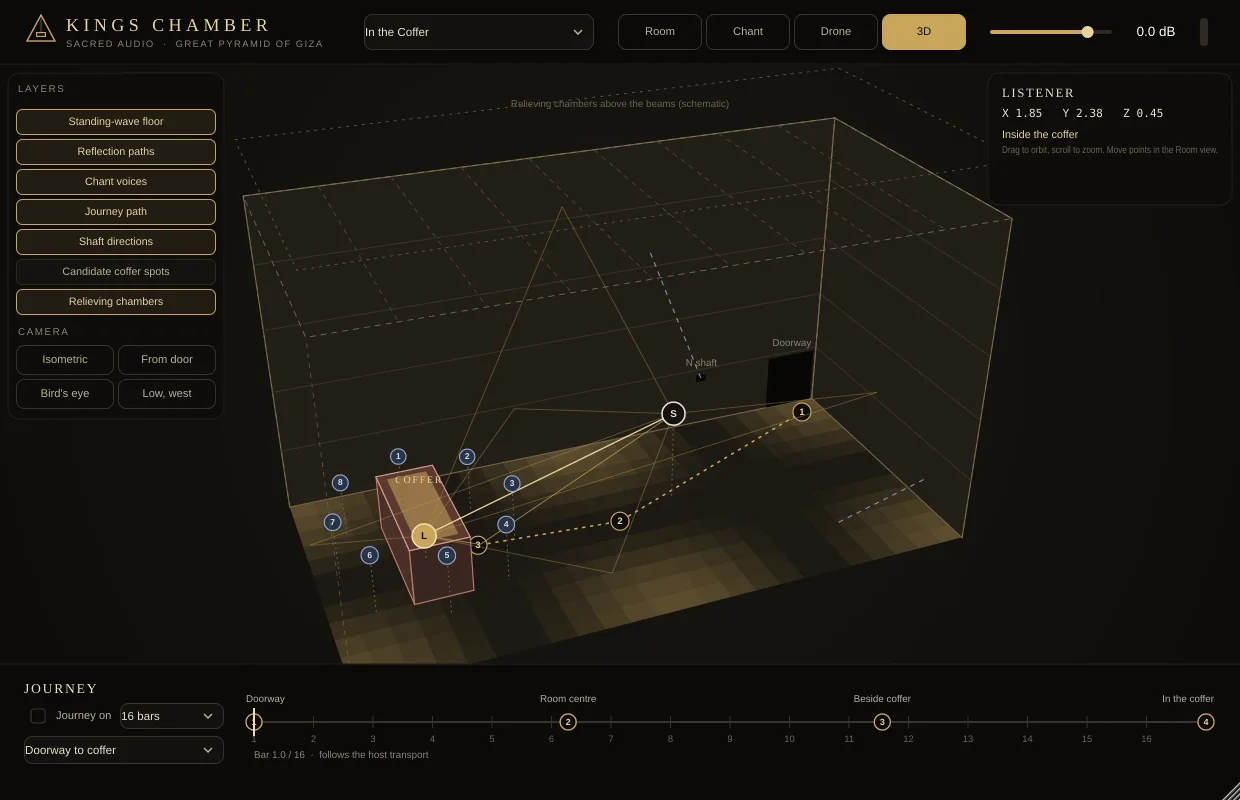
- 1Layers to show in the model.
- 2Camera views.
- 3Model: drag to orbit, scroll to zoom.
- 4Journey on: the listener walks with the song.
- 5Journey length in bars.
- 6Journey path.
- 7Timeline: the current bar of the journey.
| Control | What it does |
|---|---|
| Layers | Standing-wave floor, Reflection paths, Chant voices, Journey path, Shaft directions, Candidate coffer spots, Relieving chambers (schematic). |
| Camera | Isometric, From door, Bird's eye, Low, west. |
| Journey on | The listener walks a path through the room in time with the song, following your DAW's transport. |
| Journey length | 4, 8, 16, 32 or 64 bars. |
| Journey path | Doorway to coffer, Circuit of the room, Coffer to doorway, or Procession: through the outer halls, a still balancing chamber where the reverb falls to near silence, then the holy of holies, where the decay blooms. |
A timeline under the model shows the current bar of the journey.
Inputs, outputs and MIDI
Stereo in and out, plus an optional stereo sidechain input for Duck. King's Chamber is an audio effect that also accepts MIDI for the room keyboard and the chant's MIDI harmony.
Presets
King's Chamber has 17 factory presets in two groups. Presets never change Dry/Wet, Output or the Stereo / Binaural output format, so loading one won't change your mix.
King's Chamber
| Preset | Description |
|---|---|
| In the Coffer | Lying in the open granite coffer, the source near the east wall. |
| Centre of the Chamber | Standing in the middle of the chamber. |
| Chamber Walk | The listener walks from the doorway to the coffer over 16 bars. |
| Psy Send | Short tempo-synced tail with ducking, mono bass and low cut. For a send: set Dry / wet to 100 %. |
| Circle of OM | Eight voices chant OM in a circle round the coffer; you lie inside it. |
| Two Choirs AUM | Twelve voices in two choirs, north and south, singing AUM in fifths. |
| Shaft Breath Drone | Wind through the air shafts rings the held notes, tuned to the room's own pitches. |
| 432 Ceremony | A=432 chant with the room keyboard sounding under it. |
| Frozen Granite | Freezes the tail: play over a held chamber. |
Sacred rooms
| Preset | Description |
|---|---|
| Golden Secret 432 | King's Chamber with the Golden Secret resonance and a 432 Hz temple key, lying in the coffer. |
| Procession | Halls, a still balancing chamber, then the holy of holies blooms. Synced to the host. |
| Holy of Holies | A perfect 20-cubit cube: every axis shares one set of modes. |
| Solomon Hall Choir | Twelve voices along the walls of Solomon's Hall, singing AUM in fifths. |
| Barabar Sudama | Mirror-polished granite cave with a long ringing low end. |
| Barabar Vapika Drone | The smaller Barabar cave as a drone, rung by shaft wind at room pitch. |
| Osireion Waters | Megalithic hall at the water table, with a slow shimmer on the tail. |
| Notre-Dame Nave | Far down the Gothic nave, with a long pre-delay. |
Workflow tips for producers
- Use it as a send: put King's Chamber on a return track with Dry/Wet at 100 %. Psy Send is set up for this: a short tempo-synced tail, ducking, mono bass and the 30 Hz cut.
- Keep the kick clean: turn on Duck. Route the kick into the sidechain input to duck the reverb under the kick only; without a sidechain it ducks under the dry signal.
- Tempo-locked tails: set Tail sync to 1, 2, 4 or 8 bars and the tail follows the song tempo.
- Low end: Mono < 120 Hz and Cut 30 Hz are on by default. Use Modes to bring the room's own low notes up or down.
- Position is the sound: moving the source and listener changes the low end most. Drag L into the coffer for the 117 Hz shell resonance, or to the room centre for an even tail.
- Breakdowns: Freeze holds the tail while you play over it. Frozen Granite starts there.
- Play the room: on the Drone page, set Held notes to Resonator and play chords from a MIDI track (in Ableton: a MIDI track, MIDI To > the King's Chamber track > Kings Chamber). Your pad rings only the held notes.
- Choirs and drones: Two Choirs AUM, Circle of OM and Shaft Breath Drone make whole beds from nothing. Set Voices from to Your input to build a choir from your own sound.
- Automate a walk: Journey moves the listener through the room over 4 to 64 bars in time with the song. Procession falls to near silence in the balancing chamber before the holy of holies blooms.
Workflow tips for sound healers
- Lie in the coffer: In the Coffer puts the listener at coffer height (0.45 m) inside the open granite coffer. With Output format on Binaural, use headphones.
- A chanting circle: Circle of OM places eight voices round the coffer while the listener lies inside. Change Syllable to AUM, HU or AH and set Breath length to the pace of the group.
- Your voice or bowls in the chamber: run a microphone through King's Chamber (or use the Standalone app) and set Voices from to Your input to surround one voice with a choir of its own copies.
- A drone to work over: Shaft Breath Drone and Barabar Vapika Drone sound by themselves. Latch notes on the room keyboard; the brightest keys are where the chamber rings most.
- Tuning: choose A=432 or Room pitch for the keyboard and chant. Temple key adds a resonance at 110, 432 or 528 Hz; Golden Secret 432 combines the Golden Secret and the 432 Hz key.
- Other sacred rooms: the Barabar caves ring for a very long time at the low end; Holy of Holies is a perfect cube; Osireion has a slow water shimmer.
- A ceremony arc: Procession moves from the outer halls through a still balancing chamber into the holy of holies, following the transport.
- Show the room: the 3D page and the coffer cymatics give clients something to look at while they listen.
Troubleshooting
LIM lights up under the meter
The safety limiter on the output (ceiling -0.5 dBFS) is catching peaks. That's its job. If it lights often, lower Output, Chant level or Drone level, or Dry/Wet.
The held notes make no sound
On the Drone page, Held notes become must be Resonator or Drone. Resonator needs audio on the track (silence in, silence out). In Drone mode with the Chant voices exciter, switch Chant on on the Chant page.
MIDI notes don't reach King's Chamber
In Ableton, set the MIDI track's MIDI To to the King's Chamber track and choose Kings Chamber in the second menu. You can also click keys on the Drone page; clicks latch on and off. Release all lets go of every note.
The Decay knob does nothing
While Tail sync is set to a bar length, the tail follows the tempo and the knob shows Decay (synced). Set Tail sync to Free. Freeze also holds the tail.
CPU use is high
The early reflections and the modal bank are the main costs, and 8 to 16 chant voices add more. Turn Chant off when you don't need it, use fewer Voices, or use one instance on a return track instead of several inserts. Raising your DAW's buffer size helps too.
King's Chamber doesn't show up in my DAW
Rescan plug-ins (Ableton: Settings > Plug-Ins > Rescan; Logic: Plug-in Manager > Reset & Rescan Selection). In Ableton, check that Use VST3 Plug-in System Folders or Use Audio Units is on. Look for Kings Chamber under the manufacturer Sacred Audio. If you chose not to install a format in the installer, run the installer again and tick it.
The sound drops out for a few seconds every minute
The 14-day trial has ended and the plug-in is in demo mode: the output goes silent for 4 seconds once a minute. Enter your licence key (click Activate in the header) and it stops straight away.
My licence key isn't accepted
The licence panel tells you why. "That doesn't look like a Sacred Audio licence key": copy the whole key, starting with SA1., with nothing missing at the end. "This key isn't genuine or was changed while copying": copy it again from your purchase e-mail, or use Load licence file... with the .salicense file, which avoids copy errors. "This key is valid, but for another Sacred Audio product": the key is for a different plug-in. If you've lost your key, use the Licence page on the website to have it sent to your e-mail again.
A preset won't import
Presets and packs only load into the plug-in they were made for. A .sapreset from another Sacred Audio plug-in is refused with a message saying so.
Support
Open About in the plug-in and click Support for a pre-filled e-mail with your version and macOS, or contact us through the website.