Divine Spatializer manual
Overview
Divine Spatializer is a sacred-geometry 3D spatializer. The Tree of Life and Metatron's Cube are its pan law: the sound on your track travels the 22 paths of the Tree, and each sephirah it reaches lights up in sound and colour. The Tree is body-centred: the Middle Pillar runs through the listener's spine, with two Severity pillars on the left and two Mercy pillars on the right.
Walk the Lightning Flash, the Serpent of Wisdom, the Middle Pillar or a Caduceus ascent. Orbit a solid of Metatron's Cube around the head, from the Merkaba star tetrahedron to all 78 lines. Or use the sacred motion paths: a counter-rotating Merkaba, a Torus flowing through you, or a Torus field of up to 12 streams. Steps lock to your song's tempo, run in free time for meditation, or follow your automation.
Rendering is binaural, so use headphones. The input's stereo survives the movement, so binaural beats from Binaura still work through it.
Installation
Install
- Download the Divine Spatializer installer (
.pkg) from the link in your purchase e-mail, or from the product page for the free trial. - Double-click the
.pkgand follow the steps. You can choose which formats to install:- VST3 goes to
/Library/Audio/Plug-Ins/VST3(Ableton Live, Bitwig, Cubase, Reaper, FL Studio and others). - Audio Unit goes to
/Library/Audio/Plug-Ins/Components(Logic Pro, GarageBand, Ableton Live). - Standalone app goes to
/Applicationsand runs without a DAW.
- VST3 goes to
- Open your DAW and rescan plug-ins. Divine Spatializer appears from the manufacturer Sacred Audio as Divine Spatializer.
Divine Spatializer runs on macOS 11 or later, on Apple Silicon and Intel Macs. Windows versions are coming soon.
Ableton Live
Open Settings > Plug-Ins. Turn on Use VST3 Plug-in System Folders (and Use Audio Units if you prefer AU), then press Rescan. Put Divine Spatializer after a sound source (Binaura, a pad, a drone, a vocal), pick a preset and press Play.
Logic Pro
Logic uses the Audio Unit. If Divine Spatializer doesn't appear, open Logic Pro > Settings > Plug-in Manager, select Divine Spatializer and click Reset & Rescan Selection. In Logic, insert it as an Audio FX after your sound source.
Trial and licence key
The first time you open any Sacred Audio plug-in you accept the licence agreement once for the whole suite. After that Divine Spatializer runs as a full 14-day trial, counted from the first time you open it. The header shows Trial 14d and counts down.
When the trial ends without a key, Divine Spatializer keeps working in demo mode: the header pill turns to Activate, the licence panel opens once per DAW session, and the output dips to silence for 4 seconds once a minute. Your sessions always reload with all their settings.
To enter your licence key, click the trial pill (or open the menu and choose Enter licence key...), then do one of these:
- Paste the key into the field and click Activate. The key starts with
SA1. - Click Paste to paste the key from the clipboard, then Activate.
- Click Load licence file... and choose the
.salicensefile from your purchase e-mail. - Drag the
.salicensefile straight onto the plug-in window.
The key is checked on your computer, offline. Nothing is sent anywhere and you don't need an internet connection. One key unlocks every Sacred Audio product it covers, in every plug-in at once: if you bought The Temple bundle, entering the key in any one of the four unlocks all four. The licence panel then shows your serial and what the key covers. Remove licence takes the key off this computer again.
The Sacred Audio header
Every Sacred Audio plug-in has the same 40 px header strip across the top. Learn it once and it works the same everywhere.
- 1Sigil and name open the About page.
- 2Undo / Redo, one step per knob gesture.
- 3Previous / next preset. The right arrow sits after the preset box.
- 4Preset name opens the preset browser. A
*means you changed something. - 5Save your sound as a preset.
- 6A / B compares two versions of your settings.
- 7Trial pill: days left, or Activate. Click to enter your key.
- 8Menu: presets, window size, Settings, licence, updates, manual, About.
| Part | What it does |
|---|---|
| Sigil and name | Opens the About page: version, build, format, licence status and serial, credits, manual, website, support (a pre-filled e-mail with your version and macOS), licence agreement, health notice where it applies, third-party notices and update check. |
| Undo / Redo | One undo step per knob gesture. |
| Preset name | Opens the preset browser. The arrows either side step to the previous and next preset. A * after the name means you've changed something since loading it. |
| Save | Saves your sound as a preset: name, category, author, tags and a description. |
| A / B | Two versions of your settings to compare. The menu has Copy A to B (or B to A). |
| Trial pill | Shows the trial days left, or Activate when the trial has ended. Click it to enter a key. |
| Update dot | Appears when a newer version is available. Click it for the About page. |
| Menu | Presets (save, save changes, browse, Init to reset to defaults, import, open preset folder, copy A/B), window size, Settings, licence, updates, manual and About. |
Presets
The browser lists All presets, Favourites, Factory and My presets, by category. Search by name or tag, click a preset to hear it, and star the ones you use most. Your own presets are saved as .sapreset files in ~/Documents/Sacred Audio/<plug-in>/Presets/<category>/. You can rename and delete your own presets; factory presets stay as they are (use Save to make a copy).
Import and export: export one preset as a .sapreset file, or a set of your presets as a .sapack pack. To import, use Import presets or packs... in the menu, or drag .sapreset, .sapack or a folder of presets onto the plug-in. Presets made for a different Sacred Audio plug-in are refused with a clear message.
Presets are mix-safe: they never touch the plug-in's level controls (listed in the Presets section below), so loading one doesn't jump your mix.
Window size and Settings
Choose 75 % to 200 % from Menu > Window size or in Settings, or drag the bottom-right corner. The size is remembered for each plug-in.
Settings are shared by all Sacred Audio plug-ins on your computer: window size, Reference tuning (A4 = 440, 432, 444 or 436 Hz), your preset author name, tooltips on or off, the daily update check (on or off) and a button to open your preset folder.
Controls
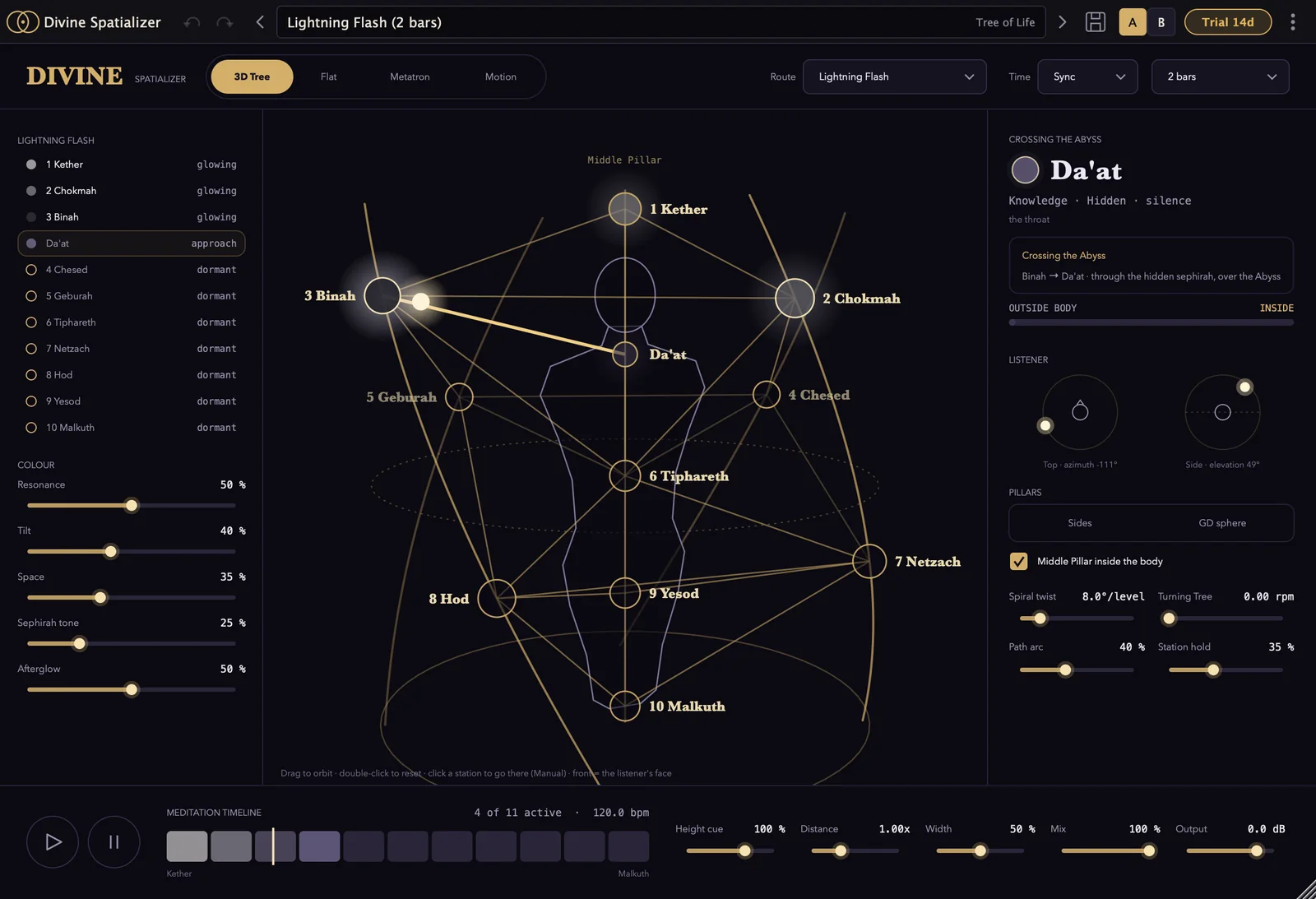
Divine Spatializer moves the sound on its track in 3D around the listener's head, in binaural stereo. Use headphones. The window has a top bar (view, route and time), a station list and Colour column on the left, the live view in the centre, a right panel (Now, Listener and the geometry controls) and a footer (play, hold, timeline and output). Every control is automatable.
- 13D Tree, Flat, Metatron, Motion: the geometry.
- 2Route: the walk, orbit solid or motion path.
- 3Time: Sync, Free or Manual, with the step length.
- 4Stations of the current geometry.
- 5Colour: what each station adds to the sound.
- 6Centre view: drag to orbit, click a station to park the sound.
- 7Now: where the sound is and the path it travels.
- 8Listener: the sound's position from the top and the side.
- 9Pillars: the geometry controls for the 3D Tree.
- 10Play and Hold.
- 11Timeline: where the walk is now.
- 12Height cue, Distance, Width, Mix, Output.
Top bar
| Control | What it does |
|---|---|
| 3D Tree / Flat | The Tree of Life geometry, shown in 3D or as the flat diagram. Both use the same body-centred 3D Tree for the sound. |
| Metatron | Metatron's Cube: the sound orbits a solid around the head. |
| Motion | Sacred motion: Merkaba, Torus or Torus field. |
| Route / Orbit / Path | The walk. In the Tree: Lightning Flash, Serpent of Wisdom, Middle Pillar descent, Middle Pillar ascent, Caduceus ascent. In Metatron: the orbit solid (see below). In Motion: Merkaba, Torus, Torus field. |
| Time | Sync: steps lock to your DAW's timeline. Free: seconds per step, for meditation. Manual: you set or automate the position. |
| Step length (Sync) | 1 beat, 2 beats, 1 bar, 2 bars, 4 bars, 8 bars per step. |
| Step (Free) | 0.5–60 s per step (default 6 s). |
| Position (Manual) | 0–100 % along the route. Automate it to place the sound exactly. |
In Motion, Sync snaps the speeds to the nearest tempo division and locks them to the song, so the step length menu is hidden. In Manual, Position becomes the phase of the motion.
Centre view
The 3D Tree, the cube or the motion figure, live. Drag to orbit the view, double-click to reset it. In the Tree, click a station to park the sound there (Time switches to Manual). In Metatron, click a vertex to go there. The front of the view is the listener's face, and in Metatron and Motion the centre is you.
Footer
- 1Play walks again.
- 2Hold stays at the current station.
- 3Meditation timeline: where the walk is now.
- 4Height cue: strength of the elevation cues.
- 5Distance of the outer pillars and orbits.
- 6Width: how much of the input's stereo is kept.
- 7Mix: dry / wet.
- 8Output level.
| Control | Range | What it does |
|---|---|---|
| Play | Walks again. If Time was Manual, it switches back to Sync. | |
| Hold | Holds the sound at the current station. | |
| Timeline | Meditation timeline (Tree), Orbit cycle (Metatron) or the Dervish / Torus flow / Field lanes (Motion): where the walk is now. | |
| Height cue | 0–150 % (default 100 %) | Strength of the elevation cues: how much higher and lower stations sound above and below the ears. |
| Distance | 0.5–2.0x (default 1.0x) | Scales how far the outer pillars and orbits are from the head. Affects level, air and the amount of space. |
| Width | 0–100 % (default 50 %) | How much of the input's own stereo is kept. Higher keeps each input channel in its own ear, so binaural beats from Binaura survive the movement. |
| Mix | 0–100 % (default 100 %) | Dry / wet. |
| Output | -24 to +6 dB (default 0) | Output level. |
Left column: stations and Colour
The left column lists the stations of the current geometry: the sephiroth (Tree), the orbit solids (Metatron, click one to choose it) or the three motion paths (Motion, click one to choose it).
Below it, Colour shapes what each station adds to the sound:
- 1Stations of the current geometry, here the sephiroth.
- 2Click a station in the view to park the sound there.
- 3Resonance: resonators on each sephirah's tone.
- 4Tilt: bright above, earthy below.
- 5Space that opens toward the Supernals.
- 6Sephirah tone sounding at each station.
- 7Afterglow: visited stations keep glowing.
| Control | Range | What it does |
|---|---|---|
| Resonance | 0–100 % (default 50 %) | Resonators tuned to each sephirah's Cousto tone and two harmonics. |
| Tilt | 0–100 % (default 40 %) | Bright above, earthy below. In Motion: Tilt (bright above). |
| Space | 0–100 % (default 35 %) | A space that opens toward the Supernals. |
| Sephirah tone / Vertex tone | 0–100 % (default 25 %) | An optional tone sounding at each station. Kether sounds all the planetary tones; Da'at is silence. |
| Afterglow | 0–100 % (default 50 %) | Visited stations keep glowing, so a full walk ends with the whole Tree softly sounding. |
In Motion, the Colour column shows Polarity (Merkaba) or Tilt (Torus), then Space.
Right panel: Now and Listener
Now shows what is happening: the station the sound is Activated at, Approaching, or Crossing the Abyss; the path number, its Hebrew letter and attribution, and how that letter moves the sound. In Metatron: At the vertex, Travelling the edge, In the heart. In Motion: Whirling, Around the ring, Through the centre, Sprouting through you.
Listener shows the sound's position from the top (azimuth) and from the side (elevation).
Right panel: 3D Tree (Pillars)
- 1Now: the sound is Crossing the Abyss at Da'at.
- 2Path: the path being travelled and how it moves the sound.
- 3Top: the sound's azimuth seen from above.
- 4Side: its elevation.
- 5Sides or GD sphere pillar layout.
- 6Middle Pillar inside the body.
- 7Spiral twist of the outer pillars.
- 8Turning Tree turns the Tree around you.
- 9Path arc toward the spine.
- 10Station hold: rest at each station.
| Control | Range | What it does |
|---|---|---|
| Sides / GD sphere | Pillar layout: Sides (two Severity pillars on the left, two Mercy pillars on the right) or the Golden Dawn sphere. | |
| Middle Pillar inside the body | on/off (default on) | The Middle Pillar runs through the listener's spine, so Kether, Da'at, Tiphareth, Yesod and Malkuth sound inside the body. Switch off to stand the Tree in front of you. |
| Spiral twist | 0–45 °/level (default 8) | Spirals the outer pillars. |
| Turning Tree | 0–2 rpm | Turns the whole Tree around you. Locked to the song in Sync. |
| Path arc | 0–100 % (default 40 %) | How much the paths arc in toward the spine. |
| Station hold | 0–90 % (default 35 %) | Share of each step spent resting at the station before travelling on. |
How paths move: each path moves the sound by its Hebrew letter. Mother letters glide (Aleph), sway (Mem) or flicker (Shin). Double letters ease by their planet, from the Moon (fastest) to Saturn (slowest). Single letters start sharp (cardinal), run steady (fixed) or waver (mutable). Steps without a path cross the Abyss through Da'at.
Right panel: Metatron (Orbit)
The 13 circles of Metatron's Cube are read in 3D as the listener at the centre plus the 12 vertices of a cuboctahedron. The sound travels the chosen solid's edges around your head, vertex to vertex.
| Orbit solid | What it does |
|---|---|
| Star tetrahedron | The Merkaba: walks the Sun tetrahedron, passes through the heart, walks the Moon tetrahedron. |
| Tetrahedron (fire), Octahedron (air), Cube (earth), Icosahedron (water), Dodecahedron (ether), Cuboctahedron (vector equilibrium) | One closed walk over each solid's edges. |
| All 78 lines | Travels every line of Metatron's Cube exactly once and returns to the centre. |
Each solid has a Cousto root tone; vertices above the ears sound higher, below lower.
| Control | Range | What it does |
|---|---|---|
| Counter-spin | 0–100 % (default 100 %) | Star tetrahedron only: 0 = both tetrahedra turn together, 100 % = opposite ways. |
| Axis tilt | 0–90 ° | Leans the spin axis forward. |
| Spin | 0–2 rpm | Turns the solid around you. |
| Arc | 0–100 % | 0 = edges cut straight through the sphere, 100 % = they hug the sphere around the head. |
| Vertex hold | 0–90 % | Share of each step spent resting at a vertex. |
Right panel: Motion
Merkaba: two copies of the sound counter-rotate around your head, a bright Sun copy above the ears and a dark Moon copy below.
| Control | Range | What it does |
|---|---|---|
| Dervish | 0.5–240 rpm (default 20) | How fast the two copies whirl. |
| Counter-spin | 0–100 % | How far the Moon turns the other way. |
| Height | 0–60 ° (default 30) | How far above and below the ears they sit. |
| Shape | circles to hexagram | Morphs their circles into the two triangles of the hexagram. |
| Polarity (Sun bright, Moon dark) | 0–100 % (default 60 %) | How bright and dark the two copies are. |
Torus: the sound flows around the ring and up through the centre, which is you, then arches over the top and falls down the outside.
| Control | Range | What it does |
|---|---|---|
| Scale: atom to galaxy | atom, seed, heart, body, temple, mountain, earth, galaxy | From inside the head to vast and distant. |
| Ring | 0.1–120 rpm (default 6) | Speed around the ring. |
| Flow through | 0.1–120 rpm (default 15) | Speed up through the centre. |
| Tube | 0–100 % (100 % = through you) | Opens a hole so the flow passes around you instead of through you. |
Torus field: the Torus, but a signal flows along each of its flow lines at once. Ring, Flow through, Scale and Tube work as on the Torus, plus:
| Control | Range | What it does |
|---|---|---|
| Streams | 2–12 (default 8) | How many signals, evenly spaced around the ring. Each carries a slightly differently delayed copy, so they are heard as many signals. |
| Sprout | steady to 100 % (default 60 %) | Each signal is born as it rises through the centre and fades on the way down. |
| Together | spread to all at once | Spreads the streams along the flow (a steady circulation) or sends them all through you at once (a fountain burst). |
Inputs and outputs
Stereo out; mono or stereo in. A mono input is copied to both sides. The left and right channels of the input sit either side of the walker.
Presets
Divine Spatializer has 21 factory presets in three groups, one group per geometry. Presets set the movement and colour; Mix and Output stay as you set them. Each preset's description in the browser names its route and its time setting.
Tree of Life
| Preset | Route and time |
|---|---|
| Lightning Flash (2 bars) | Lightning Flash, 2 bars per step (tempo sync). |
| Serpent ascent meditation (free) | Serpent of Wisdom, 20 s per step (free time). |
| Middle Pillar descent | Middle Pillar descent, 4 bars per step (tempo sync). |
| Middle Pillar ascent | Middle Pillar ascent, 4 bars per step (tempo sync). |
| Caduceus spiral | Caduceus ascent, 1 bar per step (tempo sync). |
| Fast flash for drops (1 bar) | Lightning Flash, 1 bar per step (tempo sync). |
Metatron's Cube
| Preset | Orbit and time |
|---|---|
| Merkaba spin (1 bar) | Star tetrahedron, 1 bar per step (tempo sync). |
| Fire tetrahedron (2 beats) | Tetrahedron, 2 beats per step (tempo sync). |
| Water icosahedron meditation | Icosahedron, 12 s per step (free time). |
| Earth cube (1 bar) | Cube, 1 bar per step (tempo sync). |
| Metatron's 78 lines (1 beat) | All 78 lines, 1 beat per step (tempo sync). |
Sacred motion
| Preset | Path and time |
|---|---|
| Merkaba dervish (tempo) | Merkaba, tempo sync, Dervish 20 rpm. |
| Merkaba meditation (slow) | Merkaba, free time, Dervish 4 rpm. |
| Hexagram whirl (fast) | Merkaba, free time, Dervish 60 rpm, hexagram shape. |
| Torus breath (body) | Torus, free time, body scale. |
| Torus galaxy | Torus, free time, galaxy scale. |
| Torus atom (tempo) | Torus, tempo sync, atom scale. |
| Torus field (sprouting) | Torus field, free time, 8 streams sprouting. |
| Torus field fountain (all at once) | Torus field, free time, 12 streams rising together. |
| Torus field pulse (tempo) | Torus field, tempo sync, 10 streams together. |
| Torus field galaxy | Torus field, free time, 12 streams at galaxy scale. |
Workflow tips for producers
- Put it after a sound source: a pad, a drone, a vocal, an arp or Binaura. Pick a preset, press Play, and listen on headphones.
- Sync for movement in time: in Sync, steps lock to the timeline from 1 beat to 8 bars, so the walk lines up with your phrases. Fast flash for drops (1 bar) and Metatron's 78 lines (1 beat) are made for busy sections.
- Fill the space around the head: Torus field presets turn one sound into up to 12 moving copies. Try them on a sustained pad in a breakdown.
- Automate Position: set Time to Manual and draw Position to place a sound exactly where you want it on the route.
- Keep the low end steady: put it on a send or use Mix below 100 % to keep some of the dry sound centred.
- Binaural stays binaural: with Width up, Binaura's left and right stay in their own ears while Divine Spatializer moves them.
- Mix for headphones: the 3D cues are made for headphones. Check your mix on speakers too, and pull Height cue or Distance back if needed.
Workflow tips for sound healers
- Free time for meditation: set Time to Free and choose seconds per step. Serpent ascent meditation (free) walks the Tree at 20 s per step, Water icosahedron meditation orbits at 12 s per step.
- Walk the Middle Pillar: with Middle Pillar inside the body on, Kether, Da'at, Tiphareth, Yesod and Malkuth sound inside the body as the walk passes them. Middle Pillar ascent and descent follow the spine.
- Rest at a station: click a station in the Tree to park the sound there for as long as you like, then press Play to walk on.
- Let the Tree glow: with Afterglow up, every visited sephirah keeps sounding softly, so a full walk ends with the whole Tree.
- Slow motion: Merkaba meditation (slow) and Torus breath (body) move gently around the listener. Lower Dervish, Ring or Flow through for slower movement.
- Put a tone through it: run a singing bowl recording, a voice, a drone or Binaura into Divine Spatializer. Use the Standalone app with a live microphone input if you work without a DAW.
- Headphones: the 3D effect needs headphones. Use comfortable ones for long sessions.
Troubleshooting
The movement doesn't sound 3D
The rendering is binaural and made for headphones. On speakers the left-right movement remains, but height and front-back cues are much weaker. Raise Height cue for stronger elevation.
Nothing moves
In Sync, the walk follows your DAW's timeline: press Play. If Time is Manual (for example after clicking a station), the sound stays put until you press the Play button or automate Position. The Hold button also stops the walk.
The sound is too wet or too coloured
Lower Resonance, Space and Sephirah tone in the Colour column, or bring Mix below 100 %.
Divine Spatializer won't load on a track
It needs a stereo output, with a mono or stereo input.
Divine Spatializer doesn't show up in my DAW
Rescan plug-ins (Ableton: Settings > Plug-Ins > Rescan; Logic: Plug-in Manager > Reset & Rescan Selection). In Ableton, check that Use VST3 Plug-in System Folders or Use Audio Units is on. Look for Divine Spatializer under the manufacturer Sacred Audio. If you chose not to install a format in the installer, run the installer again and tick it.
The sound drops out for a few seconds every minute
The 14-day trial has ended and the plug-in is in demo mode: the output goes silent for 4 seconds once a minute. Enter your licence key (click Activate in the header) and it stops straight away.
My licence key isn't accepted
The licence panel tells you why. "That doesn't look like a Sacred Audio licence key": copy the whole key, starting with SA1., with nothing missing at the end. "This key isn't genuine or was changed while copying": copy it again from your purchase e-mail, or use Load licence file... with the .salicense file, which avoids copy errors. "This key is valid, but for another Sacred Audio product": the key is for a different plug-in. If you've lost your key, use the Licence page on the website to have it sent to your e-mail again.
A preset won't import
Presets and packs only load into the plug-in they were made for. A .sapreset from another Sacred Audio plug-in is refused with a message saying so.
Support
Open About in the plug-in and click Support for a pre-filled e-mail with your version and macOS, or contact us through the website.