cymaheal manual
Overview
cymaheal shows the figure your sound draws. Put it on a track, a return or the master: the sound passes through, and the window draws the cymatic figure it would make on a square plate, a disc or a water surface, after Ernst Chladni, Hans Jenny and Alexander Lauterwasser. Each reading is matched against Solfeggio, chakra-scale and Cosmic Octave records and a library of 1,266 researched records, so you see the frequency, the note, the closest tradition and its body point.
cymaheal can also sound a tone into the track: pure, binaural or pulsed (isochronic), with a breath guide and the planetary day and hour for your location. It fingerprints whole songs, writes a session scroll of every lasting figure, sends the figure to a projector or to Syphon, records QuickTime videos that follow your DAW's transport, and exports sacred tunings for Live 12 and Scala.
cymaheal is an audio effect (VST3, AU) and a Standalone app. Binaural tones need headphones.
Installation
Install
- Download the cymaheal installer (
.pkg) from the link in your purchase e-mail, or from the product page for the free trial. - Double-click the
.pkgand follow the steps. You can choose which formats to install:- VST3 goes to
/Library/Audio/Plug-Ins/VST3(Ableton Live, Bitwig, Cubase, Reaper, FL Studio and others). - Audio Unit goes to
/Library/Audio/Plug-Ins/Components(Logic Pro, GarageBand, Ableton Live). - Standalone app goes to
/Applicationsand runs without a DAW.
- VST3 goes to
- Open your DAW and rescan plug-ins. cymaheal appears from the manufacturer Sacred Audio as cymaheal.
cymaheal runs on macOS 11 or later, on Apple Silicon and Intel Macs. Windows versions are coming soon.
Ableton Live
Open Settings > Plug-Ins. Turn on Use VST3 Plug-in System Folders (and Use Audio Units if you prefer AU), then press Rescan. Put cymaheal on any track, a return or the master. The sound passes through unchanged.
Logic Pro
Logic uses the Audio Unit. If cymaheal doesn't appear, open Logic Pro > Settings > Plug-in Manager, select cymaheal and click Reset & Rescan Selection. In Logic, insert it as an Audio FX on any track, an aux or the stereo out.
Trial and licence key
The first time you open any Sacred Audio plug-in you accept the licence agreement once for the whole suite. Because cymaheal works with entrainment (binaural beats, isochronic pulses and moving visuals), the health & safety notice follows. Please read it; you'll find it again on the About page. After that cymaheal runs as a full 14-day trial, counted from the first time you open it. The header shows Trial 14d and counts down.
When the trial ends without a key, cymaheal keeps working in demo mode: the header pill turns to Activate, the licence panel opens once per DAW session, and the output dips to silence for 4 seconds once a minute. Your sessions always reload with all their settings.
To enter your licence key, click the trial pill (or open the menu and choose Enter licence key...), then do one of these:
- Paste the key into the field and click Activate. The key starts with
SA1. - Click Paste to paste the key from the clipboard, then Activate.
- Click Load licence file... and choose the
.salicensefile from your purchase e-mail. - Drag the
.salicensefile straight onto the plug-in window.
The key is checked on your computer, offline. Nothing is sent anywhere and you don't need an internet connection. One key unlocks every Sacred Audio product it covers, in every plug-in at once: if you bought The Temple bundle, entering the key in any one of the four unlocks all four. The licence panel then shows your serial and what the key covers. Remove licence takes the key off this computer again.
The Sacred Audio header
Every Sacred Audio plug-in has the same 40 px header strip across the top. Learn it once and it works the same everywhere.
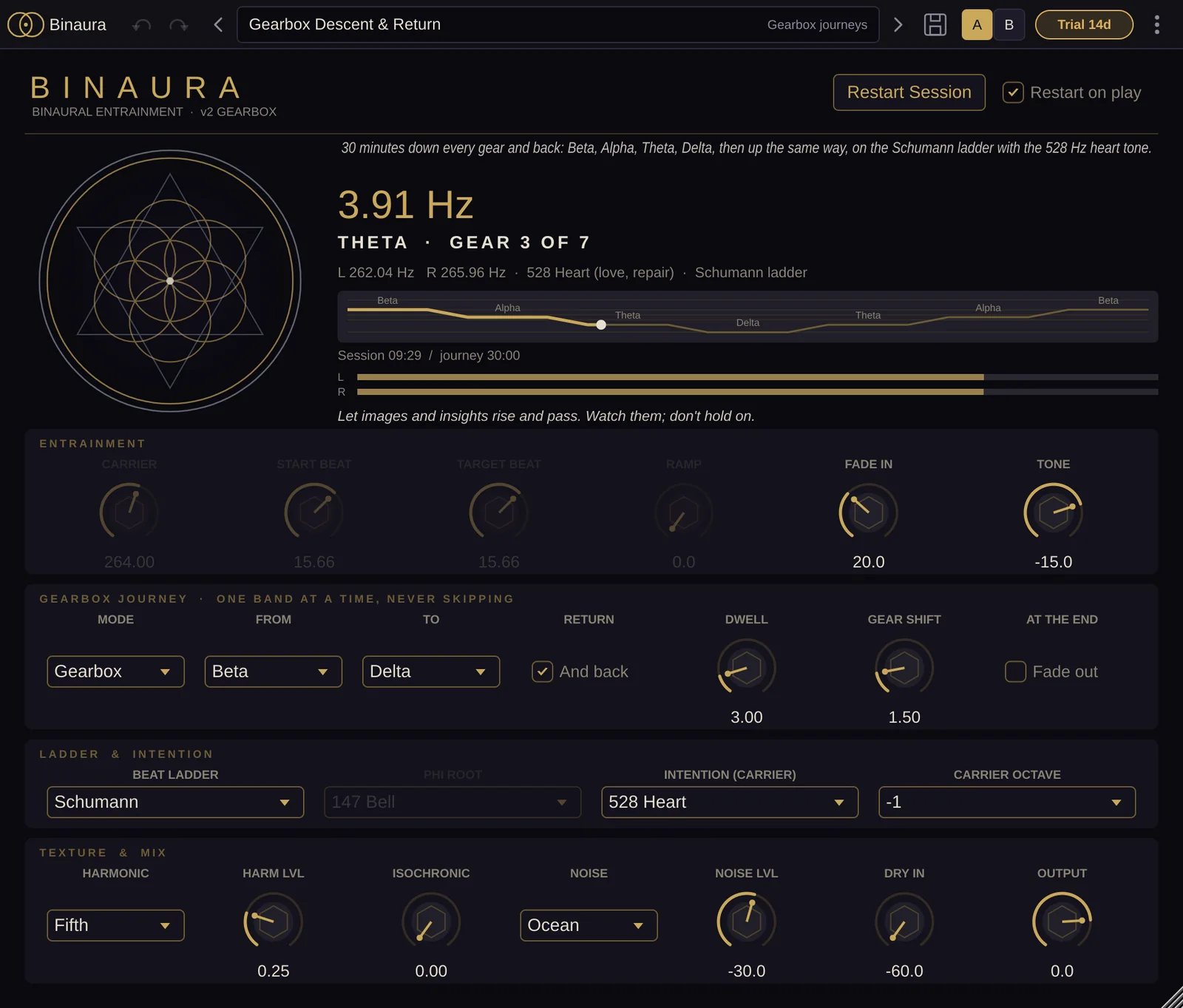
- 1Sigil and name open the About page.
- 2Undo / Redo, one step per knob gesture.
- 3Previous / next preset. The right arrow sits after the preset box.
- 4Preset name opens the preset browser. A
*means you changed something. - 5Save your sound as a preset.
- 6A / B compares two versions of your settings.
- 7Trial pill: days left, or Activate. Click to enter your key.
- 8Menu: presets, window size, Settings, licence, updates, manual, About.
| Part | What it does |
|---|---|
| Sigil and name | Opens the About page: version, build, format, licence status and serial, credits, manual, website, support (a pre-filled e-mail with your version and macOS), licence agreement, health notice where it applies, third-party notices and update check. |
| Undo / Redo | One undo step per knob gesture. |
| Preset name | Opens the preset browser. The arrows either side step to the previous and next preset. A * after the name means you've changed something since loading it. |
| Save | Saves your sound as a preset: name, category, author, tags and a description. |
| A / B | Two versions of your settings to compare. The menu has Copy A to B (or B to A). |
| Trial pill | Shows the trial days left, or Activate when the trial has ended. Click it to enter a key. |
| Update dot | Appears when a newer version is available. Click it for the About page. |
| Menu | Presets (save, save changes, browse, Init to reset to defaults, import, open preset folder, copy A/B), window size, Settings, licence, updates, manual and About. |
Presets
The browser lists All presets, Favourites, Factory and My presets, by category. Search by name or tag, click a preset to hear it, and star the ones you use most. Your own presets are saved as .sapreset files in ~/Documents/Sacred Audio/<plug-in>/Presets/<category>/. You can rename and delete your own presets; factory presets stay as they are (use Save to make a copy).
Import and export: export one preset as a .sapreset file, or a set of your presets as a .sapack pack. To import, use Import presets or packs... in the menu, or drag .sapreset, .sapack or a folder of presets onto the plug-in. Presets made for a different Sacred Audio plug-in are refused with a clear message.
Presets are mix-safe: they never touch the plug-in's level controls (listed in the Presets section below), so loading one doesn't jump your mix.
Window size and Settings
Choose 75 % to 200 % from Menu > Window size or in Settings, or drag the bottom-right corner. The size is remembered for each plug-in.
Settings are shared by all Sacred Audio plug-ins on your computer: window size, Reference tuning (A4 = 440, 432, 444 or 436 Hz), your preset author name, tooltips on or off, the daily update check (on or off) and a button to open your preset folder.
Controls
cymaheal is an audio effect: the sound passes through unchanged, and the window shows the figure it draws. The figure fills the centre, with Kindred figures below it. The top bar picks the medium and colours, a side panel has seven tabs, and a footer holds the main knobs and buttons. Every control that is a parameter can be automated from your DAW.
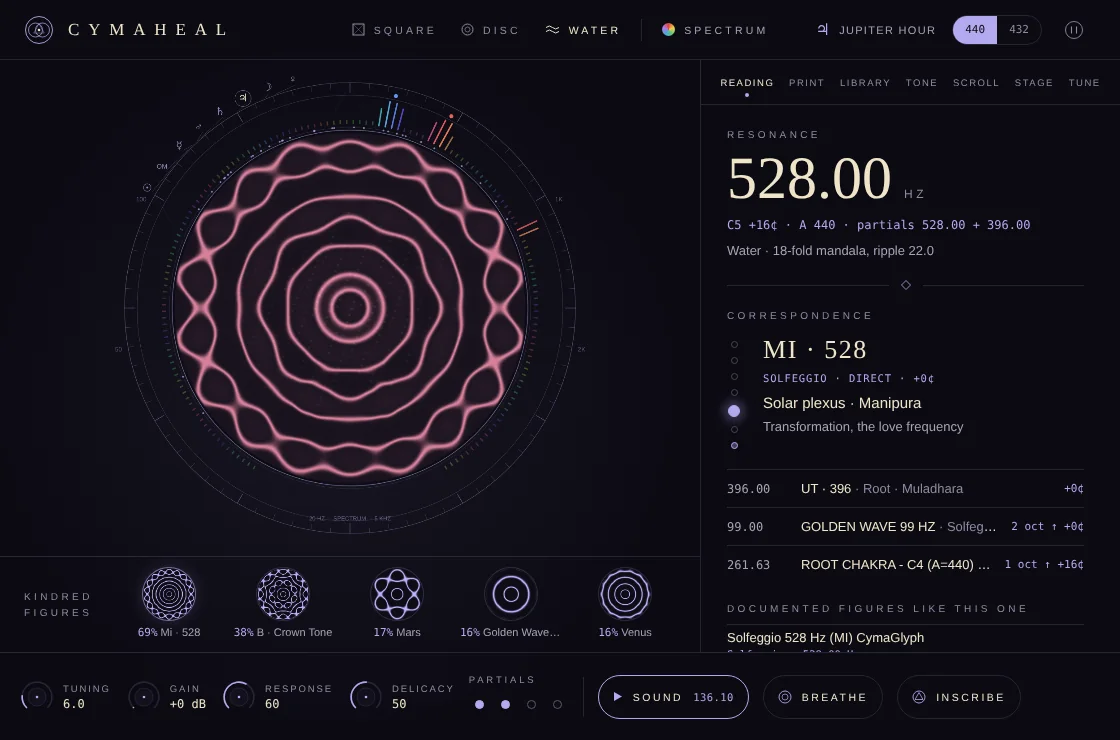
- 1Top bar: medium, colour, planetary hour, A4 reference and Hold.
- 2The figure the sound draws.
- 3Kindred figures below it.
- 4Side panel tabs: Reading, Print, Library, Tone, Scroll, Stage, Tune.
- 5Resonance: the strongest frequency.
- 6Correspondence: the matched record.
- 7Documented figures like this one.
- 8Footer knobs: Tuning, Gain, Response, Delicacy, Partials.
- 9Sound, Breathe and Inscribe.
Top bar
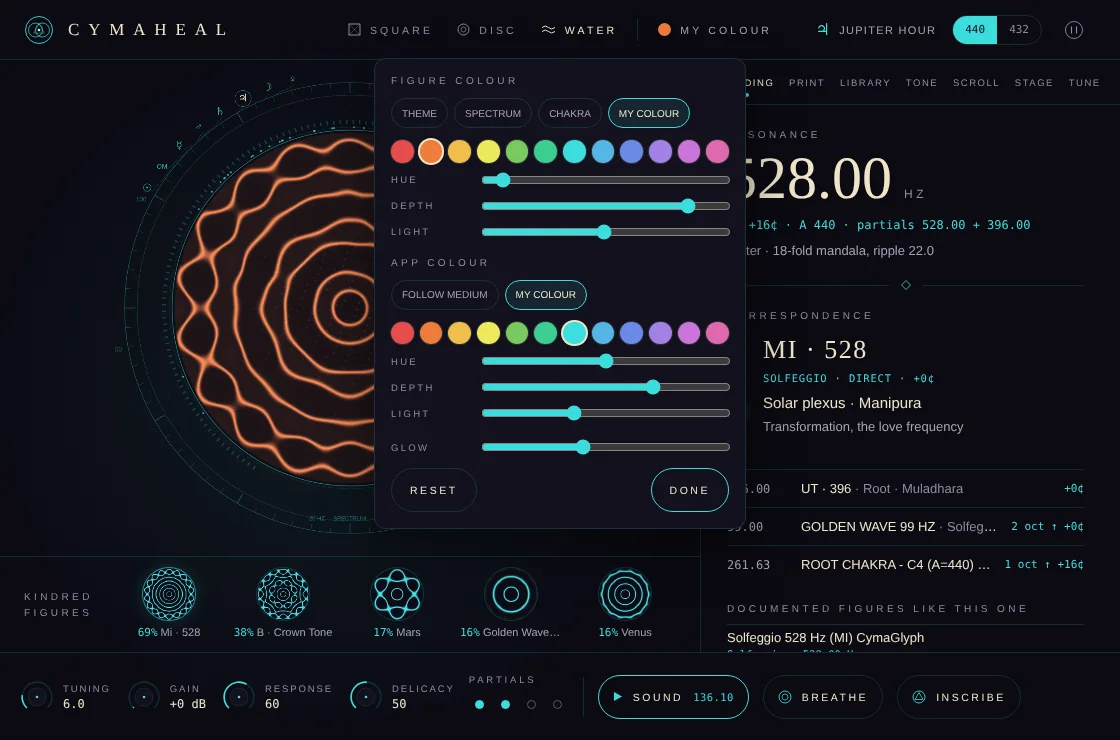
- 1Square / Disc / Water: the medium.
- 2Colour opens this panel.
- 3Planetary hour for your location.
- 4440 / 432: the A4 reference for note names.
- 5Hold freezes the figure.
- 6Figure colour: Theme, Spectrum, Chakra or My colour.
- 7Hue, Depth and Light for My colour.
- 8App colour: Follow medium or My colour.
- 9Glow around the figure.
- 10Reset and Done.
| Control | What it does |
|---|---|
| Square / Disc / Water | The medium the sound is drawn on: a square plate (as Chladni drew), a disc, or a water surface (after Lauterwasser's water sound images). Parameter: Medium. |
| Colour | Opens the colour panel. Figure colour: Theme, Spectrum, Chakra (coloured by the chakra scale of the strongest pitch) or My colour, with Hue, Depth and Light sliders. App colour: Follow medium or My colour. Glow sets the glow around the figure. Reset and Done. Parameter: Colour. |
| Planetary hour | Shows the planetary day and hour for your location. Click it to jump to the planetary hour panel on the Tone tab. |
| 440 / 432 | The A4 reference used to name notes in the reading. Parameter: A4 reference. |
| Hold | Freezes the current figure. Parameter: Hold figure. |
Footer
- 1Tuning: how the plate answers frequency.
- 2Gain for the analysis only.
- 3Response: how quickly the figure follows.
- 4Delicacy of small detail.
- 5Partials: how many frequencies shape the figure.
- 6Sound turns the tone on, showing its frequency.
- 7Breathe turns the breath guide on.
- 8Inscribe saves the figure as your own record.
| Control | Range | What it does |
|---|---|---|
| Tuning | 2–24 (default 6) | Plate tuning: how the plate answers frequency. Higher values give more detailed figures for the same sound. Parameter: Plate tuning. |
| Gain | 0 to +24 dB | Input gain for the analysis, for quiet sources. It doesn't change the sound passing through. |
| Response | 0–100 (default 60) | How quickly the figure follows the sound. Low is slow and calm, high is lively. |
| Delicacy | 0–100 (default 50) | How finely the figure draws small detail. |
| Partials | 1–4 dots (default 2) | How many of the strongest frequencies shape the figure. |
| Sound | Turns the tone generator on or off. Shows the current tone frequency, with bin or pulse for those modes. | |
| Breathe | Turns the breath guide on or off. | |
| Inscribe | Saves the current figure as your own record, with a name (for example Drop at 2:14). Inscribed figures join the records the reading matches against. |
Reading tab
- 1Tabs: Reading is open.
- 2Resonance: the strongest frequency in Hz.
- 3Its note name and the plate mode.
- 4Correspondence: the matched record and its tradition.
- 5Body point on the seven-point ladder.
- 6What the tradition says it is for.
- 7Other close matches.
- 8Documented figures like this one.
- Resonance: the strongest frequency in Hz, its note name and the plate mode.
- Correspondence: the matched record (from the Solfeggio, chakra-scale and Cosmic Octave records and the library), its tradition, its body point on a seven-point ladder, and what the tradition says it is for. Other close matches are listed below.
- Documented figures like this one: figures from the library that resemble the current one.
- Hold each reading: Live, 2 s, 4 s or 8 s. How long each reading stays before the next one replaces it.
Print tab
Song fingerprint listens through a whole track and records which cymatic figures it makes, how much each one dominates, which frequencies of the traditions it touches and how its body map leans.
- Start print begins listening. Follow play (on by default) starts and stops with your DAW's transport.
- The results: Dominant figures, Frequencies touched, Documented kin, Body map, Symmetry and energy.
- Save print: give it a track name and save it as a PNG card and a JSON file. Show in Finder opens the folder.
- Resembles your saved prints: compares the track with prints you've saved before.
Library tab
The cymatic library holds 1,266 researched records from many sources: what each frequency or figure is, and what its tradition or research says it is for. Families include Chladni plates, wave physics, CymaScope, Cosmic Octave, tuning forks, chakra, Solfeggio, Hans Jenny, Tama-Do, brainwave, voice and mantra, gongs, singing bowls, music of the spheres, Lauterwasser, Schumann and more. Some families are marked historical.
Search by number, word or name (for example 528, heart, hexagon, Jenny, OM), or filter by family. For each record you can Show figure, Play tone or Open source.
Tone tab
Sound a tone into the track. The tone is added to the audio passing through.
| Control | Range | What it does |
|---|---|---|
| Frequency | 20–2000 Hz (default 136.10) | The tone. Quick picks: Current reading, OM 136.10, MI 528, UT 396, Earth day 194.18. |
| Sound | Starts and stops the tone, with gentle fades. | |
| Mode | Pure, Binaural, Pulse | Pure: one sine tone in both ears. Binaural: the left ear hears the tone minus half the beat, the right ear plus half the beat, so the beat forms between the ears (use headphones). Pulse: the tone swells and fades at the beat rate (isochronic), which works on speakers. |
| Beat | 0.5–40 Hz (default 4) | The beat for Binaural and Pulse. Quick picks: Delta 2, Theta 4, Theta 6, Schumann 7.83, Alpha 10, Gamma 40. |
| Level | -48 to -6 dB (default -18) | Tone level. |
| Breathe | The breath guide: the ring around the plate swells and settles with you. Inhale for two fifths of each breath, exhale for three fifths. | |
| Breath rate | 3–12 breaths a minute (default 6) | Speed of the breath guide. |
Planetary hour: the current planetary day and hour, when it ends and the next hour. Hours run from your sunrise and sunset in the Chaldean order. Enter your place name, latitude and longitude (north and east positive). Sound the hour sets the tone to the Cosmic Octave tone of the current hour's planet and starts it.
Scroll tab
Session scroll: while a session runs, every new figure that holds for a few breaths is written to the scroll, with its tone and correspondence.
- Begin session starts writing. Press again to end.
- Save scroll saves the scroll as a PNG image and a JSON file to
~/Music/cymaheal/Sessions. Show in Finder opens the folder.
Stage tab
| Control | What it does |
|---|---|
| Open visuals | Opens a separate window with only the figure. Drag it to a projector screen and double-click for full screen. |
| Send to Syphon | Publishes the figure as the Syphon source "cymaheal" for Resolume, MadMapper, VDMX or OBS. |
| Arm recording | When armed, cymaheal records the figure and the track's sound to a QuickTime movie (H.264 video, AAC audio) every time your DAW's transport plays, and stops when it stops. Movies go to ~/Music/cymaheal/Videos. |
| Pulse with tempo | The figure pulses with the song's tempo. Parameter: Pulse with tempo. |
| Figure changes | Free, On the beat, On the bar. When the figure is allowed to change. Parameter: Figure change. |
Recording and Syphon capture the plug-in window on macOS 12.3 or later. The first time, macOS asks for screen recording permission: allow your DAW under System Settings > Privacy & Security > Screen Recording, then restart the DAW.
Tune tab
Sacred tunings: save a scale as a Live 12 tuning (.ascl, load it in Live's Tuning section) or as a Scala file (.scl) for Pigments, Vital, Surge and other microtonal synths. Files go to ~/Music/cymaheal/Tunings.
| Scale | What it is |
|---|---|
| Seven planets | Hans Cousto's tones of the seven classical planets, folded into one octave from the Sun. |
| Cosmic Octave | All thirteen Cousto tones: the planets, the Earth year (OM), Earth day and Platonic year. |
| Solfeggio | The nine Solfeggio tones folded into one octave from UT 396. |
| OM just scale | A just-intonation major scale with Sa on the Earth year tone, 136.10 Hz. |
| Twelve tones at A = 432 | Equal temperament tuned to Verdi pitch. |
Where files go
Prints, scrolls, videos and tunings are saved under ~/Music/cymaheal/. Your inscribed records and settings live in ~/Library/Application Support/cymaheal/. The open tab and other window settings are saved with your DAW session.
Presets
cymaheal has 13 factory presets in four groups. Presets set the figure and the tone. Input gain, Tone level and the A4 reference stay as you set them.
Plates
| Preset | Description |
|---|---|
| Bronze Disc | The default: a disc plate, two partials, spectrum colours. Put it on any track. |
| Chladni Square | Square plate figures as Chladni drew them, three partials. |
| Fine Sand | A finely tuned square plate that answers small changes: lively, detailed figures. |
Water
| Preset | Description |
|---|---|
| Water Mirror | A slow water surface in the theme colour, after Lauterwasser's water sound images. |
| Chakra Water | Water surface coloured by the chakra scale of the strongest pitch. |
Stage
| Preset | Description |
|---|---|
| Beat Stage | For projection: figures change on the beat and pulse with the tempo. |
| Bar Stage | For projection: figures change once a bar on a square plate, pulsing with the tempo. |
Healing tones
| Preset | Description |
|---|---|
| OM 136.1 Pure | The Cosmic Octave Earth year tone (OM, 136.1 Hz) as a pure tone on a disc. |
| Solfeggio 528 | 528 Hz pure tone on water, chakra colours. |
| Heart 639 Breath | 639 Hz with the breath guide at six breaths a minute. |
| Theta OM Binaural | OM 136.1 Hz carrier with a 6 Hz binaural beat (headphones) and slow breathing. |
| Delta Rest 174 | 174 Hz with a 2.5 Hz binaural beat for deep rest (headphones). |
| Schumann Pulse | 216 Hz pulsed at 7.83 Hz, the Schumann resonance; works without headphones. |
Workflow tips for producers
- Put it anywhere: on a track, a return or the master. The sound passes through untouched, so it can stay in the chain while you mix.
- Find the spots that sing: watch the figure while you tune a lead or a kick. The Reading tab names the frequency, the note and the closest tradition record.
- Fingerprint a finished track: run Print over the whole song and save the card. Compare new tracks with your saved prints.
- Visuals for live sets: load Beat Stage or Bar Stage, then Open visuals on the projector, or Send to Syphon into Resolume, MadMapper, VDMX or OBS.
- Music videos: Arm recording and press Play. Each playback becomes a QuickTime movie of the figure with the track's sound, ready for social posts.
- Tune your synths: export Cosmic Octave, Solfeggio or OM just scale from the Tune tab and load it in Live 12's Tuning section or in Pigments, Vital or Surge.
- Automate the look: Medium, Plate tuning, Hold figure, Figure change and the other parameters can be drawn as envelopes, so the figure changes with the arrangement.
Workflow tips for sound healers
- Show the sound: put cymaheal on your microphone input (or run the Standalone app) and play bowls, forks, gongs or voice. Clients see the figure each tone draws.
- Sound a tone: on the Tone tab, pick a tone from the quick list or the Library and press Sound. OM 136.1 Pure and Solfeggio 528 are ready to go.
- Breathe together: the Breathe guide swells and settles the ring around the plate at 3–12 breaths a minute. Heart 639 Breath sets six breaths a minute.
- Headphones or room: Binaural mode needs headphones. For a group in a room, use Pulse mode, as in Schumann Pulse.
- Work with the planetary hours: set your location once, then Sound the hour plays the Cosmic Octave tone of the current planetary hour.
- Keep a record: Begin session writes every lasting figure to the Scroll. Save it as a picture and data file to share with the client or keep with your notes.
- Project it: Open visuals puts the figure alone on a second screen or projector for the room.
- Look things up: the Library's 1,266 records cover Solfeggio, chakra, Cosmic Octave, tuning forks, singing bowls, gongs and more, each with its source.
Troubleshooting
The figure doesn't move
cymaheal draws from the sound passing through it, so the track needs audio. Check that Hold isn't on, and that Hold each reading on the Reading tab isn't set to a long hold. For quiet sources, raise Gain in the footer. It only affects the analysis, not the sound.
I can't hear the binaural beat
Binaural mode needs headphones, with each ear on its own channel. On speakers use Pulse mode, which swells and fades the tone itself.
No tone when I press Sound
Check the tone Level on the Tone tab, and that the track's output reaches your speakers. The tone fades in gently over a moment.
Recording or Syphon shows no picture
Window capture needs macOS 12.3 or later and screen recording permission. Allow your DAW under System Settings > Privacy & Security > Screen Recording, then restart the DAW. Recording starts only when Arm recording is on and the DAW's transport plays.
cymaheal won't load on a track
cymaheal needs the same number of channels in and out, mono or stereo.
cymaheal doesn't show up in my DAW
Rescan plug-ins (Ableton: Settings > Plug-Ins > Rescan; Logic: Plug-in Manager > Reset & Rescan Selection). In Ableton, check that Use VST3 Plug-in System Folders or Use Audio Units is on. Look for cymaheal under the manufacturer Sacred Audio. If you chose not to install a format in the installer, run the installer again and tick it.
The sound drops out for a few seconds every minute
The 14-day trial has ended and the plug-in is in demo mode: the output goes silent for 4 seconds once a minute. Enter your licence key (click Activate in the header) and it stops straight away.
My licence key isn't accepted
The licence panel tells you why. "That doesn't look like a Sacred Audio licence key": copy the whole key, starting with SA1., with nothing missing at the end. "This key isn't genuine or was changed while copying": copy it again from your purchase e-mail, or use Load licence file... with the .salicense file, which avoids copy errors. "This key is valid, but for another Sacred Audio product": the key is for a different plug-in. If you've lost your key, use the Licence page on the website to have it sent to your e-mail again.
A preset won't import
Presets and packs only load into the plug-in they were made for. A .sapreset from another Sacred Audio plug-in is refused with a message saying so.
Health & safety
cymaheal can produce binaural beats, isochronic pulses, slow modulation and moving visual patterns designed to influence how you feel. Most people find them relaxing. The full notice appears the first time you open the plug-in and is always available on the About page. In short:
- Don't listen while driving, cycling, operating machinery, or doing anything that needs your full attention.
- Ask a doctor first if you have epilepsy or a history of seizures, a heart condition, a pacemaker or other implanted device, a psychiatric condition, or if you are pregnant. People with photosensitive epilepsy should also avoid flashing visuals.
- Stop listening if you feel dizzy, anxious, nauseous, disoriented or unwell. Most effects fade within minutes.
- Keep the volume moderate, especially on headphones. Binaural beats need headphones, and they work at low volume.
- Not for children without supervision.
- When you guide others (sound healing sessions, classes), let them know what to expect and that they can stop at any time.
cymaheal is a creative and relaxation tool, not a medical device. It does not diagnose, treat, cure or prevent any condition, and it is not a substitute for professional care. Descriptions of frequencies, brainwave bands, chakras and intentions in this manual and in the plug-in are artistic and cultural, drawn from sound healing practice and tradition, not medical claims.
Support
Open About in the plug-in and click Support for a pre-filled e-mail with your version and macOS, or contact us through the website.