Binaura manual
Overview
Binaura generates binaural beats and mixes them with whatever is on your track. The left ear hears the carrier minus half the beat, the right ear the carrier plus half the beat, and the difference between them is the beat. Around that core you can add a harmonic pair that carries the same beat, an isochronic pulse that also works on speakers, and a pink, brown or ocean noise bed.
The beat can glide from a start value to a target over a ramp of up to an hour. Or switch to Gearbox mode and Binaura builds a whole journey through the brainwave bands, Delta, Theta, Alpha, Beta and Gamma, one band at a time and never skipping one. Beats can follow the Schumann ladder (7.83 Hz and its octaves) or a Phi ladder divided down from a root tone, and the carrier can follow the Solfeggio intentions, from 174 Ground to 963 Unity. Planetary carriers in the presets follow Hans Cousto's Cosmic Octave.
Binaura is an audio effect (VST3, AU) and a Standalone app. It works on an empty track, where it simply generates. Binaural beats need headphones.
Installation
Install
- Download the Binaura installer (
.pkg) from the link in your purchase e-mail, or from the product page for the free trial. - Double-click the
.pkgand follow the steps. You can choose which formats to install:- VST3 goes to
/Library/Audio/Plug-Ins/VST3(Ableton Live, Bitwig, Cubase, Reaper, FL Studio and others). - Audio Unit goes to
/Library/Audio/Plug-Ins/Components(Logic Pro, GarageBand, Ableton Live). - Standalone app goes to
/Applicationsand runs without a DAW.
- VST3 goes to
- Open your DAW and rescan plug-ins. Binaura appears from the manufacturer Sacred Audio as Binaura.
Binaura runs on macOS 11 or later, on Apple Silicon and Intel Macs. Windows versions are coming soon.
Ableton Live
Open Settings > Plug-Ins. Turn on Use VST3 Plug-in System Folders (and Use Audio Units if you prefer AU), then press Rescan. Drop Binaura on any audio track. An empty track works, because it generates on its own.
Logic Pro
Logic uses the Audio Unit. If Binaura doesn't appear, open Logic Pro > Settings > Plug-in Manager, select Binaura and click Reset & Rescan Selection. In Logic, insert it as an Audio FX on an audio track or an aux.
Trial and licence key
The first time you open any Sacred Audio plug-in you accept the licence agreement once for the whole suite. Because Binaura works with entrainment (binaural beats, isochronic pulses and moving visuals), the health & safety notice follows. Please read it; you'll find it again on the About page. After that Binaura runs as a full 14-day trial, counted from the first time you open it. The header shows Trial 14d and counts down.
When the trial ends without a key, Binaura keeps working in demo mode: the header pill turns to Activate, the licence panel opens once per DAW session, and the output dips to silence for 4 seconds once a minute. Your sessions always reload with all their settings.
To enter your licence key, click the trial pill (or open the menu and choose Enter licence key...), then do one of these:
- Paste the key into the field and click Activate. The key starts with
SA1. - Click Paste to paste the key from the clipboard, then Activate.
- Click Load licence file... and choose the
.salicensefile from your purchase e-mail. - Drag the
.salicensefile straight onto the plug-in window.
The key is checked on your computer, offline. Nothing is sent anywhere and you don't need an internet connection. One key unlocks every Sacred Audio product it covers, in every plug-in at once: if you bought The Temple bundle, entering the key in any one of the four unlocks all four. The licence panel then shows your serial and what the key covers. Remove licence takes the key off this computer again.
The Sacred Audio header
Every Sacred Audio plug-in has the same 40 px header strip across the top. Learn it once and it works the same everywhere.
- 1Sigil and name open the About page.
- 2Undo / Redo, one step per knob gesture.
- 3Previous / next preset. The right arrow sits after the preset box.
- 4Preset name opens the preset browser. A
*means you changed something. - 5Save your sound as a preset.
- 6A / B compares two versions of your settings.
- 7Trial pill: days left, or Activate. Click to enter your key.
- 8Menu: presets, window size, Settings, licence, updates, manual, About.
| Part | What it does |
|---|---|
| Sigil and name | Opens the About page: version, build, format, licence status and serial, credits, manual, website, support (a pre-filled e-mail with your version and macOS), licence agreement, health notice where it applies, third-party notices and update check. |
| Undo / Redo | One undo step per knob gesture. |
| Preset name | Opens the preset browser. The arrows either side step to the previous and next preset. A * after the name means you've changed something since loading it. |
| Save | Saves your sound as a preset: name, category, author, tags and a description. |
| A / B | Two versions of your settings to compare. The menu has Copy A to B (or B to A). |
| Trial pill | Shows the trial days left, or Activate when the trial has ended. Click it to enter a key. |
| Update dot | Appears when a newer version is available. Click it for the About page. |
| Menu | Presets (save, save changes, browse, Init to reset to defaults, import, open preset folder, copy A/B), window size, Settings, licence, updates, manual and About. |
Presets
The browser lists All presets, Favourites, Factory and My presets, by category. Search by name or tag, click a preset to hear it, and star the ones you use most. Your own presets are saved as .sapreset files in ~/Documents/Sacred Audio/<plug-in>/Presets/<category>/. You can rename and delete your own presets; factory presets stay as they are (use Save to make a copy).
Import and export: export one preset as a .sapreset file, or a set of your presets as a .sapack pack. To import, use Import presets or packs... in the menu, or drag .sapreset, .sapack or a folder of presets onto the plug-in. Presets made for a different Sacred Audio plug-in are refused with a clear message.
Presets are mix-safe: they never touch the plug-in's level controls (listed in the Presets section below), so loading one doesn't jump your mix.
Window size and Settings
Choose 75 % to 200 % from Menu > Window size or in Settings, or drag the bottom-right corner. The size is remembered for each plug-in.
Settings are shared by all Sacred Audio plug-ins on your computer: window size, Reference tuning (A4 = 440, 432, 444 or 436 Hz), your preset author name, tooltips on or off, the daily update check (on or off) and a button to open your preset folder.
Controls
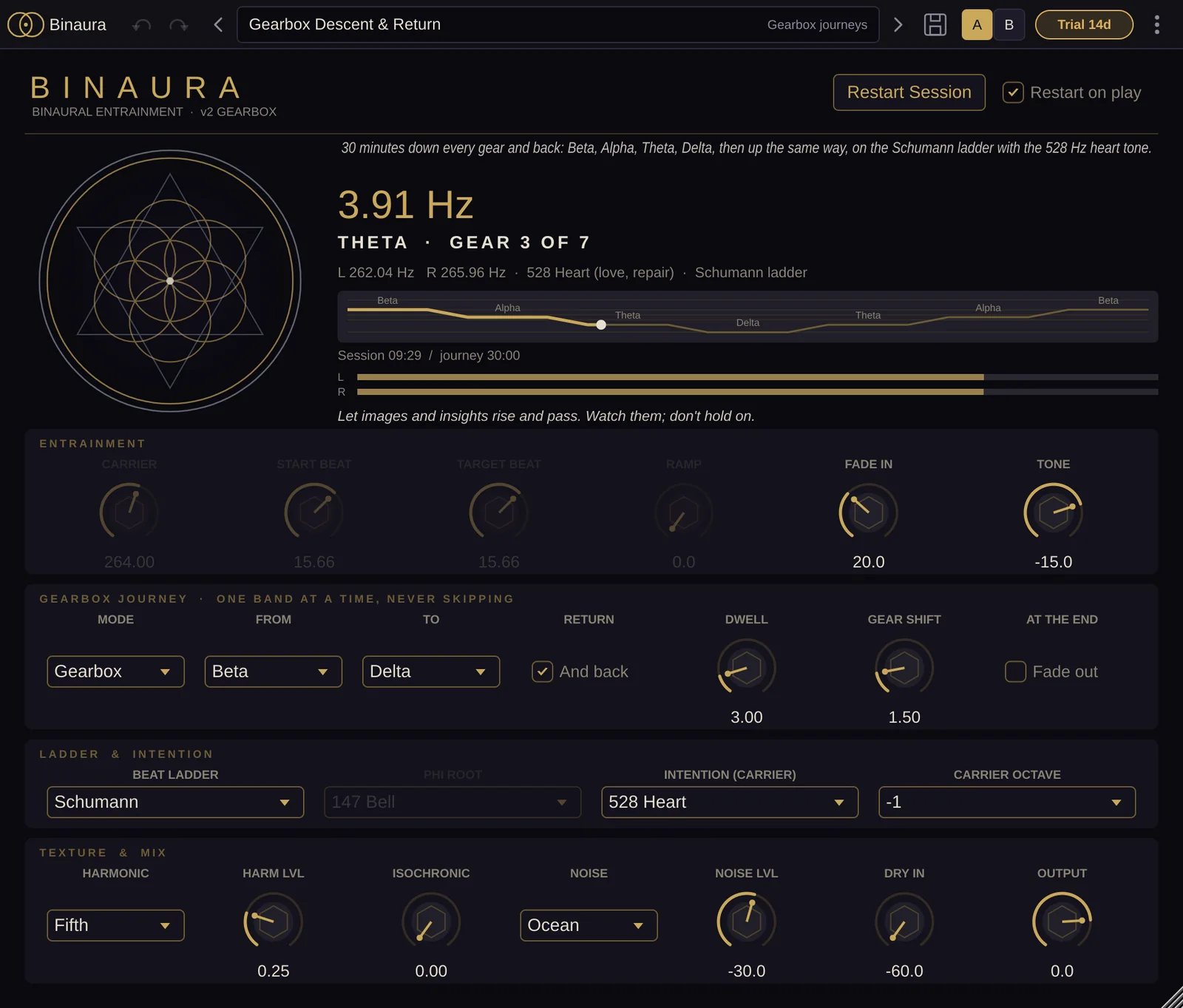
Binaura's window has the mandala and live readout at the top, then four rows of controls: Entrainment, Gearbox journey, Ladder & intention and Texture & mix. Every control is automatable.
- 1Mandala, moving gently with the beat.
- 2Beat readout: the beat in Hz, its band and the current gear.
- 3Journey staircase, the dot is where you are now.
- 4Session time and total journey time, with the L / R meters below.
- 5Cue line: guidance for the current band.
- 6Restart Session starts again from the beginning.
- 7Restart on play restarts with your DAW's Play.
- 8Entrainment: carrier, beats, ramp, fade in, tone level.
- 9Gearbox journey: from, to, dwell and gear shift.
- 10Ladder & intention: which beats and which carrier.
- 11Texture & mix: harmonic, isochronic pulse, noise, dry and output.
Top area: mandala, readout and session buttons
| Item | What it does |
|---|---|
| Mandala | Moves with the beat, slowed down to under 1 Hz. It only brightens gently and never flashes at the beat rate. |
| Preset description | The description of the loaded preset, in italics. |
| Beat readout | The current beat in Hz (large), and the band it sits in (Delta, Theta, Alpha, Beta or Gamma). In Gearbox mode it shows the current gear, for example ALPHA · GEAR 2 OF 7, or ALPHA > THETA while shifting. |
| Ear line | The exact frequency in each ear (L and R) and where the carrier comes from: the Intention and its meaning, the Phi root, and whether the Schumann ladder is on. |
| Progress | In Classic mode: a bar for the ramp, with session time and holding or steady. In Gearbox mode: the journey drawn as a staircase of bands, with session time, total journey time and complete, holding or complete, fading out at the end. |
| L / R meters | Output level per ear. |
| Cue line | In Gearbox mode, a short guidance line for each band (for example, in Alpha: "Soften the eyes, the jaw and the shoulders. Breathe slow and low."). In Classic mode, a reminder that binaural beats need headphones. |
| Restart Session | Starts the session again from the beginning (Start Beat, or the first gear). |
| Restart on play | On by default. Every time you press Play in your DAW the session starts from the beginning. |
Entrainment
| Control | Range | What it does |
|---|---|---|
| Carrier | 20–1000 Hz (default 200) | The tone the beat rides on. The left ear hears carrier minus half the beat, the right ear carrier plus half the beat. Overridden when an Intention or the Phi ladder sets the carrier. |
| Start Beat | 0.5–45 Hz (default 10) | The beat the session starts on. |
| Target Beat | 0.5–45 Hz (default 10) | The beat it glides to. |
| Ramp | 0–60 min | How long the glide from Start to Target takes. The glide is eased and follows a log-frequency curve, then holds at the target. 0 = steady at the Target Beat. |
| Fade In | 0–60 s (default 5) | Gentle fade at the start of each session. |
| Tone | -60 to 0 dB (default -16) | Level of the binaural tones. |
Gearbox journey · one band at a time, never skipping
Gearbox builds a journey through the brainwave bands in order, never skipping one. The bands and their traditional uses, as the plug-in labels them: Delta 0.5–4 Hz sleep, Theta 4–8 Hz epiphany, Alpha 8–13 Hz baseline reset, Beta 13–30 Hz work, Gamma above 30 Hz flow.
- 1Mode: Classic or Gearbox.
- 2From: the band the journey starts in.
- 3To: the band it travels to.
- 4And back returns the same way.
- 5Dwell: minutes in each band.
- 6Gear Shift: glide time between bands.
- 7Fade out ends the journey in silence.
| Control | Range | What it does |
|---|---|---|
| Mode | Classic, Gearbox | Classic uses Start Beat, Target Beat and Ramp. Gearbox builds a journey from the controls in this row and ignores Start, Target and Ramp. |
| From | Delta … Gamma (default Beta) | The band the journey starts in. |
| To | Delta … Gamma (default Delta) | The band it travels to, through every band in between. |
| Return (And back) | on/off | Comes back to the From band the same way. |
| Dwell | 0.5–20 min (default 4) | Time spent in each band. |
| Gear Shift | 0–10 min (default 1.5) | Glide time from one band to the next. |
| At the end (Fade out) | on/off | On: fades to silence over 30 seconds when the journey ends. Off: the last band holds. |
Ladder & intention
- 1Beat Ladder: Free, Schumann or Phi.
- 2Phi Root, active when the ladder is Phi.
- 3Intention sets the Solfeggio carrier.
- 4Carrier Octave moves it down or up.
| Control | Choices | What it does |
|---|---|---|
| Beat Ladder | Free, Schumann, Phi | The beat used for each band. Free: 2, 6, 10, 16 and 40 Hz. Schumann: 7.83 Hz and its octaves, 1.96, 3.92, 7.83, 15.66 and 31.32 Hz. Phi: the Phi root divided by φ (1.618) again and again until it lands in the band, with the root itself as the carrier. In Classic mode the ladder snaps Start and Target Beat to its nearest rung. |
| Phi Root | 79.6 Organ, 117 Coffer, 147 Bell, 432 Tone | The root tone for the Phi ladder (79.617, 117, 147 or 432 Hz). Used when Beat Ladder is Phi. |
| Intention (carrier) | Manual, 174 Ground, 285 Restore, 396 Release, 417 Change, 528 Heart, 639 Connect, 741 Clarity, 852 Intuition, 963 Unity | Sets the carrier to a Solfeggio tone chosen for the intention, after the Hemi-Sync recipe of beat band + intention carrier + guidance. Manual uses the Carrier knob. |
| Carrier Octave | -2, -1, 0, +1 | Moves the Intention or Phi-root carrier down (or up) by octaves. Lower carriers are easier to listen to for a long time. The manual Carrier knob is never shifted. |
Which carrier wins: with Beat Ladder set to Phi, the Phi root sets the carrier; otherwise the Intention does; with Intention on Manual, the Carrier knob does.
Texture & mix
- 1Harmonic interval of the second pair.
- 2Harm Lvl, 0 is off.
- 3Isochronic pulse, works on speakers.
- 4Noise colour.
- 5Noise Lvl.
- 6Dry In: your track's own audio.
- 7Output level.
| Control | Range | What it does |
|---|---|---|
| Harmonic | Fifth, Octave, Twelfth | Adds a second pair of tones a fifth, an octave or a twelfth above, with the same beat difference, so it reinforces the beat. |
| Harm Lvl | 0–1 (default 0) | Level of the harmonic pair. 0 = off. |
| Isochronic | 0–1 (default 0) | Pulses the tone's volume at the beat rate. Unlike binaural beats, isochronic pulses also work on speakers. |
| Noise | Off, Pink, Brown, Ocean | A noise bed under the tones. Ocean is brown noise with slow swells drifting between the ears. |
| Noise Lvl | -60 to -6 dB (default -30) | Level of the noise bed. |
| Dry In | -60 to +6 dB (default 0) | Level of the audio already on the track. -60 dB = off. Use it to mix Binaura with music. |
| Output | -24 to +6 dB (default 0) | Final level. A gentle safety ceiling softens peaks near full scale. |
Inputs and outputs
Binaura has a stereo output (binaural needs two ears). The input can be mono, stereo or absent: on an empty track it simply generates. A mono input is copied to both ears.
Presets
Binaura has 27 factory presets in six banks. Carriers draw on Hans Cousto's planetary tones (The Cosmic Octave), the Solfeggio tones and the 110 Hz "ancient chamber" resonance. Presets set the sound only: Dry In, Output and Restart on play stay as you set them.
Delta: sleep
| Preset | Description |
|---|---|
| Delta Deep Sleep | Descends from theta into slow delta over 20 minutes. A brown-noise bed holds you as the mind lets go. |
| Delta Restoration | Earth-year OM carrier (136.1 Hz) settling into 2 Hz. Deep, still rest. |
| Schumann Delta Ground | The Earth's pulse two octaves down (1.96 Hz) on the 174 Hz grounding tone. |
Theta: epiphany
| Preset | Description |
|---|---|
| Theta Deep Meditation | Glides from alpha down to 6 Hz on the OM carrier: the doorway to deep meditative stillness. |
| Theta Shamanic Journey | Steady 4.5 Hz, the rhythm of the shaman's drum, on the 110 Hz ancient chamber resonance. |
| Hypnagogic Lucid Dream | Synodic Moon carrier (210.42 Hz) gliding 8 → 4 Hz: the threshold between waking and dreaming. |
| Third Eye 852 | 852 Hz Solfeggio carrier with a 6.3 Hz theta pulse for inner vision and intuition. |
| Release 396 | 396 Hz Solfeggio carrier with a 6 Hz theta beat. Letting go of fear and heaviness. |
| Schumann Earth Pulse | 7.83 Hz, the Earth's own resonance, on the Earth-day carrier (194.18 Hz). Grounding and attunement. |
| Heart 528 | 528 Hz Solfeggio carrier easing from alpha into Schumann 7.83 Hz. Heart opening. |
| Sound Healing Bed | Quiet OM carrier with a Schumann 7.83 Hz beat to lay under bowls, gongs and voice. |
Alpha: baseline reset
| Preset | Description |
|---|---|
| Alpha Calm | Softens a busy mind: 14 Hz down to relaxed 10 Hz alpha over 5 minutes. |
| Venus Heart Alpha | Venus carrier (221.23 Hz) with a gentle 10 Hz alpha: harmony, beauty, receptive calm. |
| Alpha Creative Flow | Hovering at the alpha–theta border (8 Hz) where ideas surface freely. Great under music sessions. |
| Phi Bell Alpha | The 147 Hz bell divided by phi six times lands on 8.19 Hz alpha. Carrier and beat share one golden root. |
| Pure Test Tone | 200 Hz carrier, 10 Hz beat, nothing else. Use to check headphones and levels. |
Beta: work
| Preset | Description |
|---|---|
| Sun Vitality Beta | Sun carrier (126.22 Hz) with a 14 Hz beta beat: warmth, vitality, awake presence. |
| Beta Focus | Steady 16 Hz beta for alert, focused work. Light isochronic edge for speakers. |
| Rise & Awaken | Rising from delta to 14 Hz beta over 10 minutes on the Platonic-year carrier: a gentle wake-up. |
Gamma: flow
| Preset | Description |
|---|---|
| Gamma 40 Hz Clarity | 40 Hz gamma for clarity and integration. Isochronic pulse adds strength. |
| Schumann Gamma 31 | The Earth's pulse two octaves up (31.32 Hz) on 741 Hz Clarity, an octave down. Bright, awake integration. |
Gearbox journeys
| Preset | Description |
|---|---|
| Gearbox Descent & Return | 30 minutes down every gear and back: Beta, Alpha, Theta, Delta, then up the same way, on the Schumann ladder with the 528 Hz heart tone. |
| Gearbox Sleep Descent | Beta to Delta one gear at a time (26 min) on the 174 Hz grounding tone, then fades to silence. |
| Gearbox Theta Gate | Beta down to Theta and back (26 min), with every beat a phi division of the 147 Hz bell. |
| Phi Organ Descent | Alpha into Delta on the 79.617 Hz organ root, an octave up. Beats fall in phi steps; fades out at the end. |
| Gearbox Rise to Flow | Alpha up through Beta into Gamma (15 min) on 741 Hz Clarity, an octave down. For starting creative work. |
| Schumann Ladder Full | Every Schumann octave from 31.32 Hz down to 1.96 Hz (19 min), on 963 Hz Unity two octaves down. |
Workflow tips for producers
- Under a track: put Binaura on its own empty audio track and bring Tone down to sit just under the music, around -20 dB or lower. Keep Dry In off on an empty track.
- On a pad or return: put it on a pad or ambient return and use Dry In to keep the original sound. The beat sits inside the pad.
- Long intros and ambient sets: a slow Ramp (or a Gearbox journey) makes a beat that moves over minutes. Restart on play means every playback starts from the same point, so your arrangement and the beat stay lined up.
- Automate it: every control can be automated. Ride Tone up into a breakdown, or switch Intention between sections.
- Speakers and clubs: binaural beats need headphones. For speakers, turn up Isochronic so the pulse is heard in the room.
- Keep it in tune with the track: pick an Intention or set Carrier to a note in your key. Carrier Octave -1 or -2 drops it under the mix.
- Through Divine Spatializer: Binaura's stereo survives Divine Spatializer when its Width keeps each channel in its own ear, so you can walk the beat around the head.
- Render a journey: Gearbox journeys run for tens of minutes. Bounce them in real time or offline like any other track.
Workflow tips for sound healers
- Headphones first: binaural beats only form between the ears. For a group in a room, use Isochronic or a speaker-friendly preset such as Beta Focus or Gamma 40 Hz Clarity.
- Check the setup: load Pure Test Tone before a session to check headphones and levels. The ear line shows exactly what each ear receives.
- Let it run on its own: the Standalone app needs no DAW. Load a Gearbox journey, press Restart Session, and let the cue line guide the listener through each band.
- Under live instruments: Sound Healing Bed is a quiet OM carrier with a Schumann 7.83 Hz beat, made to lay under bowls, gongs and voice.
- Plan the length: Gearbox sessions are Dwell × number of bands, plus the shifts. The readout shows the total journey time. Turn on Fade out for a session that ends in silence on its own.
- Choose by intention: the Intention menu sets the carrier from the Solfeggio tones, from 174 Ground to 963 Unity. Lower it with Carrier Octave for comfortable long listening.
- Keep levels low: binaural beats work at low volume. Start quiet and let people adjust.
- Tell people what to expect: let them know they can stop at any time, and keep the health notice in mind (below).
Troubleshooting
I can't hear the beat
Binaural beats only form between your ears, so you need headphones, and both ears must get their own channel. Check that the track isn't summed to mono and that nothing after Binaura (a mono utility, a stereo-width plug-in) collapses the stereo. On speakers, turn up Isochronic to hear the pulse in the room. Load Pure Test Tone to check: the ear line should show two different frequencies for L and R.
No sound at all
Check Tone (and Harm Lvl, Noise Lvl) are above -60 dB, and that Output isn't turned right down. Each session starts with a Fade In of up to 60 seconds, so a preset may start quietly. A Gearbox journey with Fade out on goes silent once it ends: press Restart Session. Binaura needs a stereo output; on a mono track it won't load.
The journey jumps back to the start
Restart on play (on by default) restarts the session each time your DAW starts playing. Turn it off to let a session keep running across stops and starts.
Start Beat or Target Beat doesn't change the sound
In Gearbox mode the journey sets the beats, so Start Beat, Target Beat and Ramp aren't used. In Classic mode with the Schumann or Phi ladder, the beats snap to the nearest rung of the ladder.
The Carrier knob doesn't change the pitch
An Intention other than Manual, or the Phi ladder, sets the carrier. Set Intention to Manual and Beat Ladder to Free or Schumann to use the knob.
Binaura doesn't show up in my DAW
Rescan plug-ins (Ableton: Settings > Plug-Ins > Rescan; Logic: Plug-in Manager > Reset & Rescan Selection). In Ableton, check that Use VST3 Plug-in System Folders or Use Audio Units is on. Look for Binaura under the manufacturer Sacred Audio. If you chose not to install a format in the installer, run the installer again and tick it.
The sound drops out for a few seconds every minute
The 14-day trial has ended and the plug-in is in demo mode: the output goes silent for 4 seconds once a minute. Enter your licence key (click Activate in the header) and it stops straight away.
My licence key isn't accepted
The licence panel tells you why. "That doesn't look like a Sacred Audio licence key": copy the whole key, starting with SA1., with nothing missing at the end. "This key isn't genuine or was changed while copying": copy it again from your purchase e-mail, or use Load licence file... with the .salicense file, which avoids copy errors. "This key is valid, but for another Sacred Audio product": the key is for a different plug-in. If you've lost your key, use the Licence page on the website to have it sent to your e-mail again.
A preset won't import
Presets and packs only load into the plug-in they were made for. A .sapreset from another Sacred Audio plug-in is refused with a message saying so.
Health & safety
Binaura can produce binaural beats, isochronic pulses, slow modulation and moving visual patterns designed to influence how you feel. Most people find them relaxing. The full notice appears the first time you open the plug-in and is always available on the About page. In short:
- Don't listen while driving, cycling, operating machinery, or doing anything that needs your full attention.
- Ask a doctor first if you have epilepsy or a history of seizures, a heart condition, a pacemaker or other implanted device, a psychiatric condition, or if you are pregnant. People with photosensitive epilepsy should also avoid flashing visuals.
- Stop listening if you feel dizzy, anxious, nauseous, disoriented or unwell. Most effects fade within minutes.
- Keep the volume moderate, especially on headphones. Binaural beats need headphones, and they work at low volume.
- Not for children without supervision.
- When you guide others (sound healing sessions, classes), let them know what to expect and that they can stop at any time.
Binaura is a creative and relaxation tool, not a medical device. It does not diagnose, treat, cure or prevent any condition, and it is not a substitute for professional care. Descriptions of frequencies, brainwave bands, chakras and intentions in this manual and in the plug-in are artistic and cultural, drawn from sound healing practice and tradition, not medical claims.
Support
Open About in the plug-in and click Support for a pre-filled e-mail with your version and macOS, or contact us through the website.